Portal Vendor PT Fast Food Indonesia Tbk (KFC, Taco Bell)
Buka link dari email
Tim Finance/Purchasing PT Fast Food Indonesia mengirim email berisi link portal, username, dan kata sandi khusus untuk perusahaan Anda. Buka link itu di browser (Chrome, Edge, Safari). Link berlaku untuk vendor Anda saja; jangan dibagikan.
Masuk
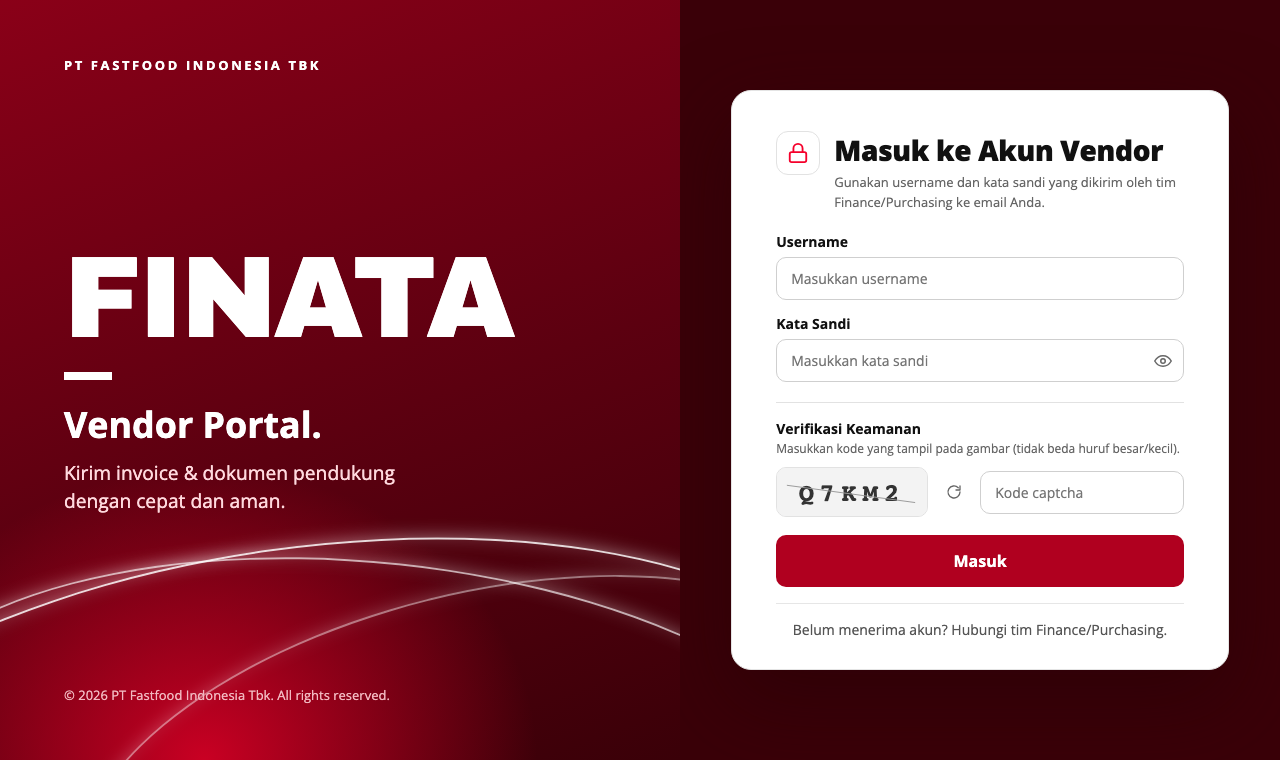
Isi Username dan Kata Sandi dari email, ketik kode captcha yang tampil di gambar (huruf besar/kecil sama saja; klik ikon putar untuk kode baru), lalu klik Masuk.
Masuk
Periksa Informasi Vendor & isi Detail Invoice
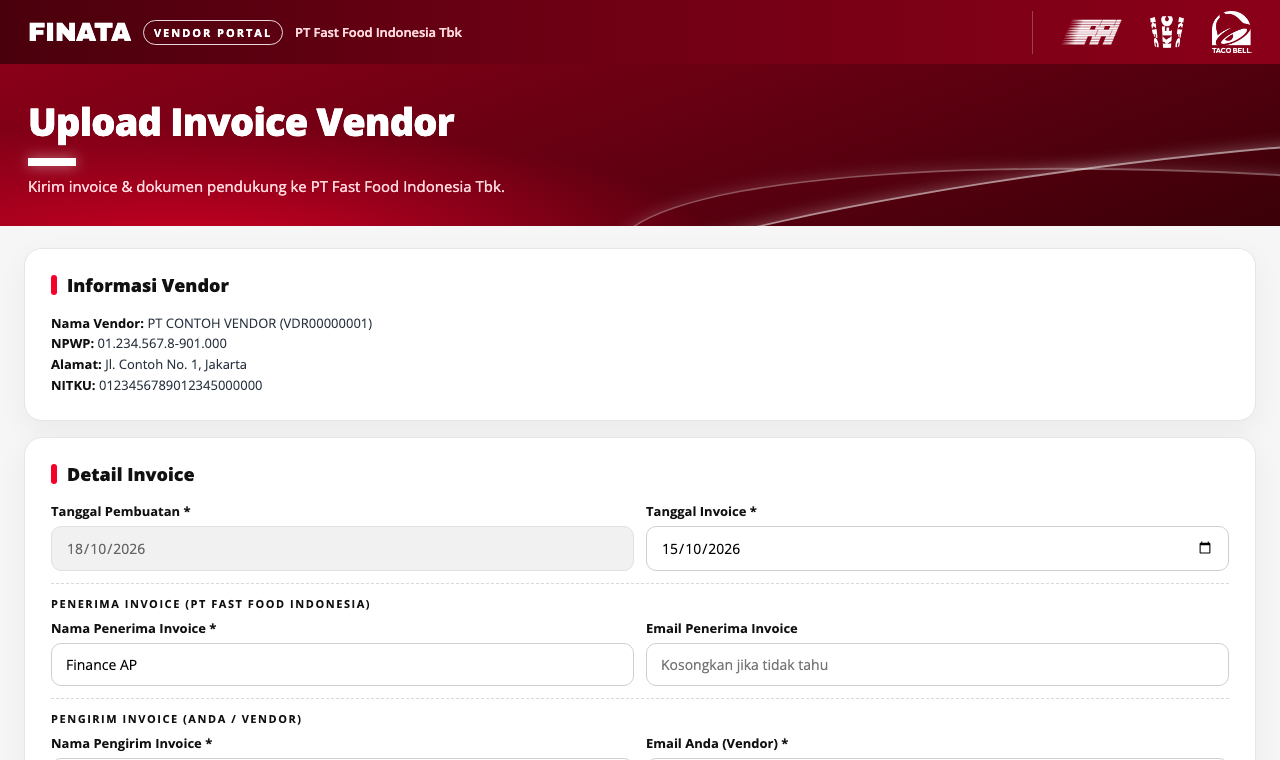
Pastikan nama, NPWP, alamat, dan NITKU benar (hubungi tim Finance bila salah). Tanggal Pembuatan terisi otomatis. Isi Tanggal Invoice, Nama Penerima Invoice (staf/departemen PT Fast Food Indonesia yang dituju; emailnya boleh kosong), Nama Pengirim Invoice, dan Email Anda — email konfirmasi dikirim ke alamat ini.
Periksa Informasi Vendor & isi Detail Invoice
Isi Item Invoice
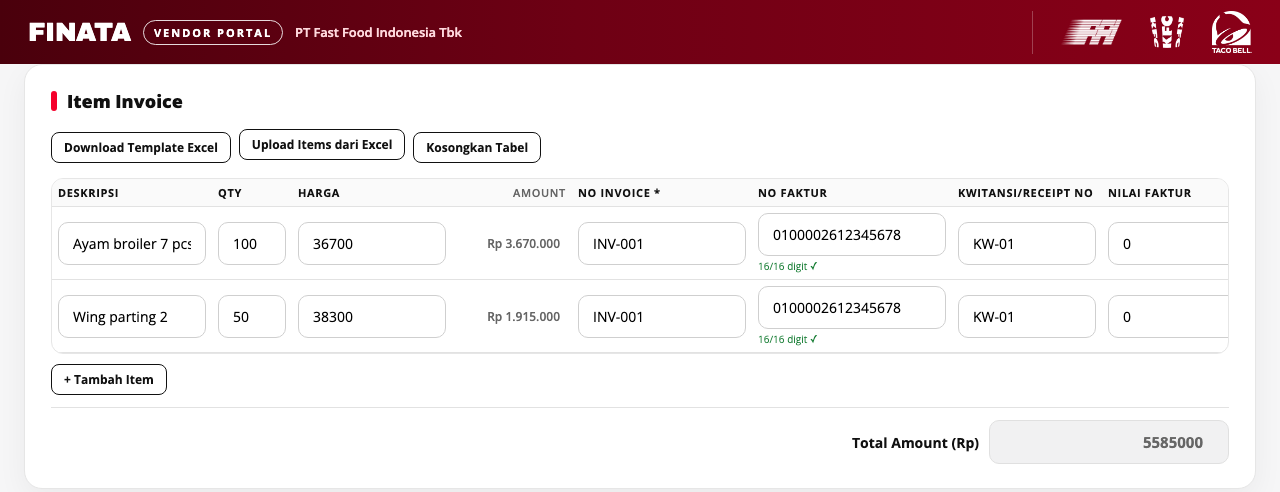
Klik + Tambah Item untuk tiap baris: Deskripsi, Qty (maks. 3 digit), Harga, No Invoice (wajib), No Faktur (maksimal 17 digit, penghitung digit tampil di bawah kotak), Kwitansi/Receipt No, dan Nilai Faktur. Amount dan Total Amount dihitung otomatis. Untuk banyak baris (mis. ratusan toko): klik Download Template Excel, isi, lalu Upload Items dari Excel (.xlsx atau .csv) — baris ditambahkan ke tabel. Kosongkan Tabel menghapus semua baris.
Isi Item Invoice
Upload Dokumen Pendukung & kirim
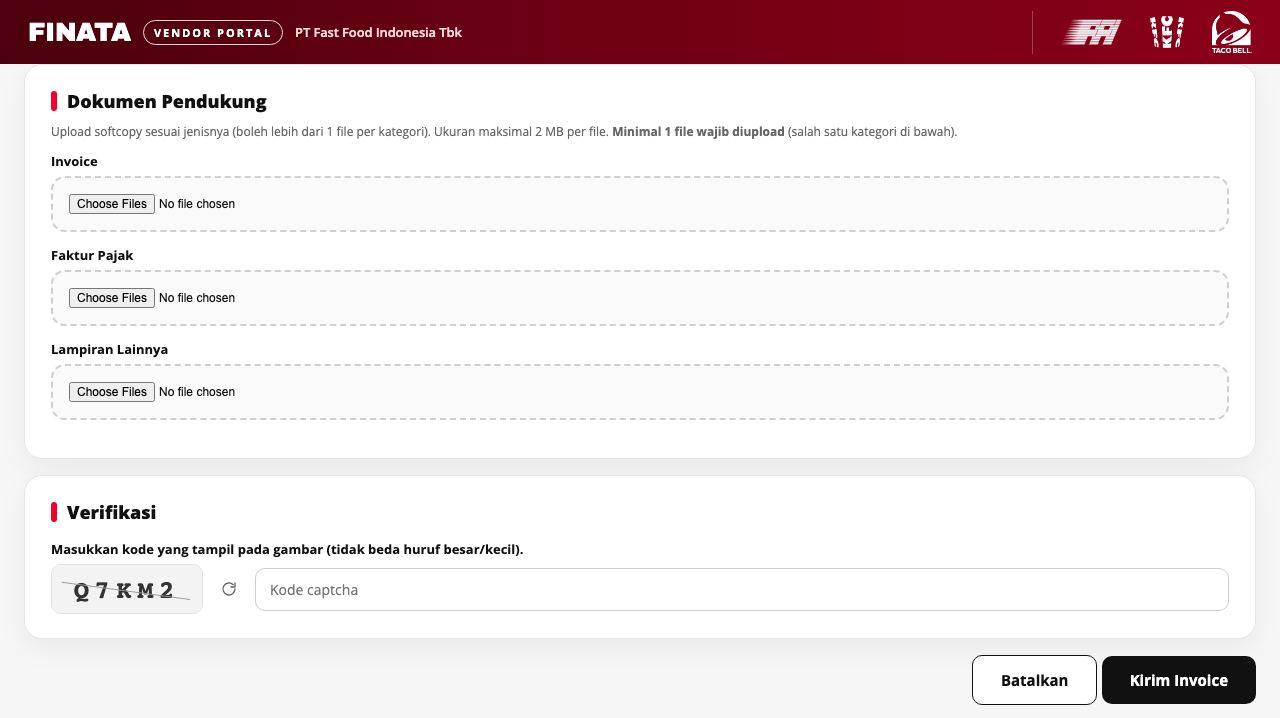
Upload softcopy pada kategori yang sesuai: Invoice, Faktur Pajak, Lampiran Lainnya. Boleh lebih dari 1 file per kategori, maksimal 2 MB per file, dan minimal 1 file wajib. Nama file tampil di bawah kotak; file yang sama tidak bisa dipilih dua kali dan bisa dihapus. Ketik kode captcha di bagian Verifikasi, lalu klik Kirim Invoice.
Upload Dokumen Pendukung & kirim
Selesai
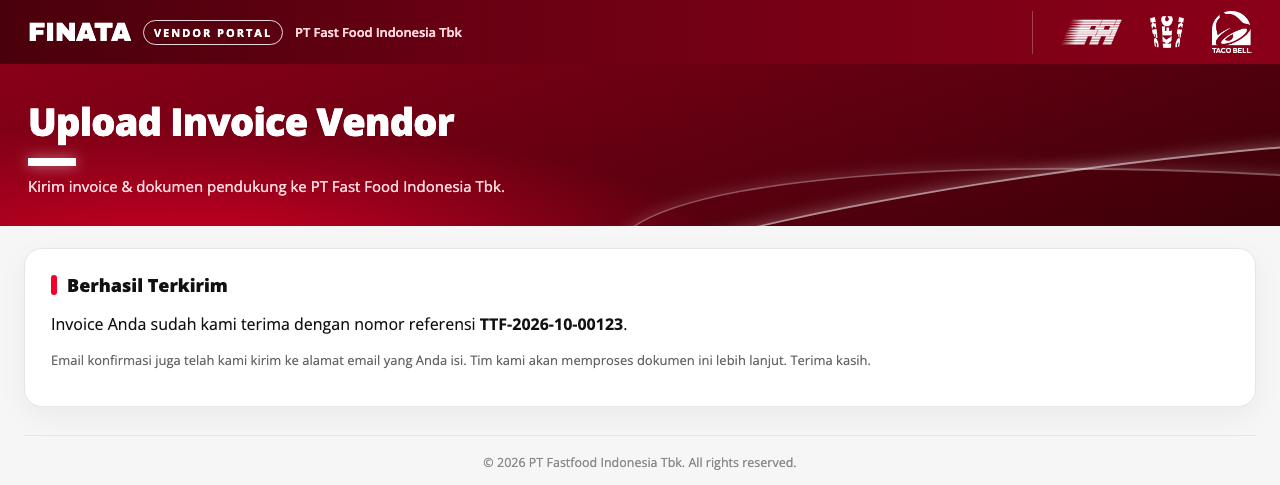
Layar Berhasil Terkirim menampilkan nomor referensi (simpan untuk pertanyaan) dan email konfirmasi dikirim ke email Anda. Tim kami memproses dokumen lebih lanjut.
Selesai
Butuh bantuan? Hubungi tim Finance/Purchasing yang mengirim link Anda. Akun belum diterima? Minta ke tim yang sama.
FINATAVendor Portal · Guide
Vendor Invoice Upload Guide
PT Fast Food Indonesia Tbk Vendor Portal (KFC, Taco Bell)
Open the link from the email
The PT Fast Food Indonesia Finance/Purchasing team emails you a portal link, a username and a password for your company. Open the link in a browser (Chrome, Edge, Safari). The link is for your company only; do not share it.
Sign in
Enter the Username and Password from the email, type the captcha code shown in the picture (not case-sensitive; click the refresh icon for a new code), then click Masuk (Sign in).
Sign in
Check Vendor Information & fill in Invoice Details
Check that the name, NPWP, address and NITKU are correct (contact Finance if not). Tanggal Pembuatan (creation date) is filled in automatically. Fill in Tanggal Invoice (invoice date), Nama Penerima Invoice (the PT Fast Food Indonesia staff or department it is for; their email may be left empty), Nama Pengirim Invoice (your name) and Email Anda (your email) — the confirmation is sent there.
Check Vendor Information & fill in Invoice Details
Fill in the invoice items
Click + Tambah Item for each line: description, qty (max. 3 digits), price, invoice no. (required), tax invoice no. (up to 17 digits, a digit counter shows below the box), Kwitansi/Receipt No and tax invoice amount. Amount and Total Amount are calculated for you. For many lines (e.g. hundreds of stores): click Download Template Excel, fill it in, then Upload Items dari Excel (.xlsx or .csv) — the lines are added to the table. Kosongkan Tabel clears all lines.
Fill in the invoice items
Upload supporting documents & submit
Upload the soft copies in the right category: Invoice, Faktur Pajak (tax invoice), Lampiran Lainnya (other attachments). Several files per category are allowed, max. 2 MB per file, and at least 1 file is required. File names are listed below each box; the same file cannot be added twice and files can be removed. Type the captcha in Verifikasi, then click Kirim Invoice (send).
Upload supporting documents & submit
Done
The Berhasil Terkirim (sent) screen shows your reference number (keep it for questions) and a confirmation email is sent to you. Our team processes the documents.
Done
Need help? Contact the Finance/Purchasing team that sent you the link. No account yet? Ask the same team.