Welcome back
Quick Actions
Recent Invoices
latest 8 TTFs you can see · click a row to open it in TTF ListVendor List
Department List
HQ Department Mapping
HQ's list, copied once into BigQuery, read only in Finata.COA Mapping List
Golongan Item
RSC List
Area Coach List
Warehouse List
Payment Method List
Brand List
HQ stores selling but missing in NetSuite
Customer List
Business Unit List
Holiday Master
Location Master
One table for every location (BigQuery kfc_netsuite_exchange.mst_location): NetSuite (internal & external id, type, RSC), HQ store and branch masters and the Finata stock ledger side by side. Click a row to see all sources and fill the manual fields; they win over every source and are never overwritten by a sync. Other teams read the same table.
Store List
StoreMerge List
Item Master List
Item Flagging List
BOM List
BOM Revision List
Recipe List
Tax Setup (KPP / NITKU / JDE Code)
Admin List
Add New Admin
Menentukan department mana saja yang boleh dipilih user ini sebagai "Target Department" saat Send Document, dan dokumen TTF department mana saja yang bisa dia lihat. Kosongkan (jangan tambahkan apa pun) utk kembali memakai default dari Role-nya.
The RSCs this user sees on Send B2C to NetSuite: the list, the chips, the Excel, the pop-ups and the sends. Leave it empty for all RSCs. A user with an RSC scope does not get Generate Finata summary.
Setelah disimpan, user menerima email undangan untuk membuat password sendiri (link berlaku 3 hari).
Editing user: leave Password blank to keep it unchanged.
Role List
Create New Role
System role -- access is controlled directly in the application code (not here), so the field & checkboxes below are read-only.
Setiap login vendor di Vendor Portal tercatat di sini. Sesi otomatis berakhir 2 jam setelah login (status Expired) — vendor tinggal login lagi. Revoke memutus sesi saat itu juga, dipakai kalau kredensial vendor diduga bocor (kirim ulang kredensial dari Vendor Master untuk mengganti passwordnya).
System Settings
TTF Draft yang otomatis dibuat dari upload softcopy invoice vendor (lihat tombol "Upload Link" di Vendor Master) akan masuk ke antrian TTF List semua role yang dipilih di atas. Kosongkan kalau fitur upload vendor belum siap dipakai — selama kosong, submit vendor ditolak dengan pesan jelas (supaya tidak ada Draft yang "hilang").
Setiap vendor submit invoice lewat Vendor Portal, sistem kirim email notifikasi ke "Email Penerima Invoice" yang diisi vendor. Kalau vendor mengosongkan field itu, notifikasi dikirim ke email di sini — semua alamat yang dituliskan akan menerima notifikasi yang sama. Kosongkan kalau belum ada email fallback.
Always copied on every vendor invoice email (submitted, processed, revised, removed). A vendor's own "KFC Billing Email" in Vendor Master is copied in addition; when filled, that vendor's own contact is the one shown to the vendor.
Sent after scheduled jobs (Scheduling & Monitoring → Scheduler) finish, with job, data date, start/finish time (WIB) and the result or error. Manual runs do not send email. Send a test email
B2C invoice lines
Item codes Finata puts on a B2C invoice for a voucher paid above the amount used and for a payment gap. NetSuite posts each line to the income account set on that item. A change applies to B2C summaries built after it: rebuild the dates you still want to send.
Petty cash
How a petty cash withdrawal (ATM BCA or money taken from sales, read from HQ) becomes a journal in NetSuite (Finance › Petty Cash Withdrawals). A change applies to journals built after it; journals already in NetSuite are not changed. The claim journals are not affected: they are always sent by a user and created as Pending Approval.
Server Status
What this Finata server is doing with NetSuite right now. Updates every 5 seconds.
This server
Finata can run more than one copy; this is the copy that answered.
Send queue
Shared by every copy of Finata, kept in the database.
Sending credentials
Each square is one request a credential may run at once (CCU); filled = sending now on this server.
NetSuite Send Queue
Every send to NetSuite waits here as a batch and is shared out across the credentials in the chosen pool, each up to its CCU. Refreshes every 15 seconds while open.
Sending pools
Requests in flight per credential right now.
Documents per day
Sent Failed · Jakarta time (WIB)
NetSuite Send Batches
One row per send. Open the NetSuite Send Queue page for the pools and daily totals.
NetSuite Connection
NetSuite credentials for Production and each Sandbox, how many requests each may run at once (CCU), and which ones share the work. Keys are stored encrypted; after saving, only the last 4 characters are shown. Test connection only reads from NetSuite, it never writes.
Applies to everyone at once: every transaction send page and every scheduled job that sends transactions. Master data (vendor price, vendor master, MID) always goes to Production. Reports and data pulls keep reading Production.
Active Sessions
Who is signed in to Finata: sessions seen in the last 15 minutes count as active; the list covers the last 6 hours.
Security Log
Every sign-in attempt to Finata and the vendor portal: who tried, from which IP, and the result. Passwords and 2FA codes are never stored.
Failed attempts by IP
Date range above, top 50. Click an IP to list its attempts.
Failed attempts by email
Date range above, top 50. Click an email to list its attempts.
Sign-ins from a new IP
A successful sign-in from an IP the user has not signed in from in the previous 30 days (users with no sign-in in those 30 days are not flagged).
Locked accounts
Accounts outside company email domains
Sign-in attempts
Filters above, newest first, 50 per page.
MT940 Statement Converter
Unggah CSV mutasi rekening (BCA / Bank Artha Graha), lengkapi info rekening yang tidak ada di CSV, lalu unduh file MT940. Diproses sepenuhnya di browser Anda -- isi CSV tidak dikirim ke server mana pun.
Mengenali kedua format CSV yang sudah pernah diunggah secara otomatis.
Bagaimana kolom dipetakan ke MT940?
Dua struktur CSV dikenali otomatis: (1) kolom terpisah Debet/Kredit, atau (2) kolom gabungan Jumlah dengan akhiran CR/DB (format mutasi rekening korporat) — keduanya boleh memakai format angka Indonesia (20.500,00) atau internasional (1,107,572.25).
Jika file memuat baris ringkasan “No. rekening”, “Saldo Awal”, “Mutasi Debet/Kredit”, atau “Saldo Akhir”, nilainya otomatis mengisi form dan dipakai untuk memvalidasi hasil hitung.
Setiap baris transaksi menjadi satu baris tag :61: + :86:. Kode jenis transaksi ditentukan dari kata kunci pada Keterangan: NTRF (mengandung “Transfer”), NCHG (mengandung “Biaya”), NMSC (lainnya).
Saldo awal (:60F:) diberi tanggal transaksi pertama, saldo akhir (:62F:) diberi tanggal transaksi terakhir. Saldo akhir dihitung otomatis: saldo awal + total kredit − total debet.
File tersimpan sebagai .txt; ganti ekstensi ke .sta atau .940 bila software Anda mensyaratkannya.
Pratinjau & unduh
Report P/L
Report Loyalty Movement
Preview
Tax Transaction
Preview
Pull GL Transaction
Pull History
Scheduler
Finata's daily jobs: when each one runs, whether the last run worked, and Run now or Edit. ? How the jobs connect
Filter
NetSuite Integration Schedule
Everything Finata sends to and pulls from NetSuite: the nightly send chain, the monthly pulls, and the integration check.
Filter
Everything Finata/PSGC sends to NetSuite: HQ documents in the integration views against transactions in NetSuite, per day. Click a row to see each day.
Data Sources
Data Finata reads from outside: how far each source goes. A source that stops does not raise an error; reports silently keep using old data.
Yesterday's data (Asia/Jakarta) is pulled & exported AUTOMATICALLY every day by Cloud Scheduler; nothing to click here. This screen is only for manual backfill/re-run of a date range. With the checkbox on, the export to BigQuery starts automatically after the pull succeeds.
Combines NetSuite movement (from the pull above, already exported) with production usage & output, then computes running balances and patches negative outlet balances. Run it AFTER Pull & Export for the same range. It runs forward day by day and stops at the first failure — today's balance is built from yesterday's, so skipping a day makes the rest wrong.
Filter
PLU cost (Food Cost by PLU)
PLU cost per unit (per month, brand, EI / TA) = sum of (component qty used per unit sold × component price of the month). On the Food Cost by PLU page, click any EI / TA cost from June 2026 onward to see its components.
- Quantity: the components HQ POS deducts for every item sold (HQ recipe at the moment of sale, including the modifiers the customer chose), divided by units sold. Repeated rows from split payments are removed first.
- Price: the component's item price of that month, national, affiliate stores excluded:
- items made in a store or warehouse (fried chicken, cooked rice, soup...): production cost of that month (materials used ÷ quantity made);
- other items: average out cost of the month, otherwise average in cost, otherwise the last average cost;
- no movement in the month: the last price from up to 12 months back.
- Selling price = the daily price that sold the most units in the month. FC % = cost × units ÷ sales before discount.
- Sales = sales before discount: the POS amount of the sale line (the menu and its paid add-ons) before item and bill discounts, excluding tax. Bookings and B2B count their line amount. Days built before release 2026.11.17-1 are after discount until rebuilt. Music CDs are not food: their rows are listed in their own section under the table and are not part of the totals. A music CD sold inside a combo is not part of the combo: its amount and its stock item are shown as a row of their own, under the CD's menu code. Days built before release 2026.11.17-1 keep the CD inside the combo until they are rebuilt.
- Periods: January–May 2026 show Accounting's numbers; June 2026 is Finata's first month (migration, kept as passed by Accounting).
Accounting prices ingredients at the month's purchase price (RSC Jakarta) and cooked items through the HQ recipe at raw prices, so up to about 2% difference per menu is expected.
Biaya PLU (Food Cost by PLU)
Biaya PLU per unit (per bulan, brand, EI / TA) = jumlah (qty komponen terpakai per unit terjual × harga komponen bulan itu). Di halaman Food Cost by PLU, klik biaya EI / TA mana pun mulai Juni 2026 untuk melihat komponennya.
- Kuantitas: komponen yang dipotong POS HQ untuk setiap item terjual (resep HQ saat penjualan, termasuk modifier pilihan pelanggan), dibagi unit terjual. Baris ganda akibat pembayaran terpisah dibuang lebih dulu.
- Harga: harga item komponen bulan itu, nasional, toko afiliasi tidak dihitung:
- item yang dibuat di toko atau gudang (ayam goreng, nasi, sup...): biaya produksi bulan itu (bahan terpakai ÷ qty hasil);
- item lain: rata-rata biaya keluar bulan itu, kalau tidak ada rata-rata biaya masuk, kalau tidak ada rata-rata biaya terakhir;
- tidak ada pergerakan di bulan itu: harga terakhir sampai 12 bulan ke belakang.
- Harga jual = harga harian yang paling banyak terjual unitnya dalam bulan itu. FC % = biaya × unit ÷ penjualan sebelum diskon.
- Penjualan = penjualan sebelum diskon: nilai POS baris jual (menu dan add-on berbayarnya) sebelum diskon item dan diskon bill, tanpa pajak. Pesanan (booking) dan B2B memakai nilai barisnya. Tanggal yang dibentuk sebelum rilis 2026.11.17-1 masih setelah diskon sampai dibentuk ulang. CD musik bukan makanan: barisnya tampil di bagian tersendiri di bawah tabel dan tidak masuk total. CD musik yang dijual di dalam combo bukan bagian dari combo: nilai dan item stoknya tampil sebagai baris sendiri, dengan kode menu CD tersebut. Tanggal yang dibentuk sebelum rilis 2026.11.17-1 masih memuat CD di dalam combo sampai dibentuk ulang.
- Periode: Januari–Mei 2026 menampilkan angka Accounting; Juni 2026 bulan pertama Finata (migrasi, sesuai yang disetujui Accounting).
Accounting menilai bahan dengan harga beli bulan itu (RSC Jakarta) dan barang masak lewat resep HQ dengan harga bahan mentah, jadi selisih sampai sekitar 2% per menu masih wajar.
Item price (Raw Material Cost)
Every store and warehouse keeps a moving average cost per item: each receipt is blended into the stock on hand, and every issue (sales, production, transfer, waste) leaves at that average.
- Purchases: Accounting's price basis when approved for that month, otherwise the vendor price (Vendor Price page). When an item has no vendor price, the manual unit cost on Master Item is used, then Accounting's purchase price. From 1 Jul 2026, a vendor price outside 0.6×–1.7× of the reference price is replaced by the reference.
- Transfers (warehouse → store, store → store): valued at the receiving location's own average cost (its price before the transfer arrives; a new location uses its last price, then the item price elsewhere).
- Open market (petty cash): the price actually paid.
- Production (fried chicken, premix, cooked rice...): the cost of the materials used ÷ quantity made.
- Opening: June 2026 opens from the 31 May physical count of every store and warehouse (Accounting's 31 May quantity where an item was not counted or the count is in the wrong unit), valued at Accounting's 31 May price; store "Need Zero Adjustment" items open at 0.
Harga item (Raw Material Cost)
Setiap toko dan gudang menyimpan harga rata-rata bergerak per item: setiap penerimaan dicampur ke stok yang ada, dan setiap pengeluaran (penjualan, produksi, transfer, waste) keluar dengan harga rata-rata itu.
- Pembelian: price basis Accounting bila disetujui utk bulan itu, selain itu harga vendor (halaman Vendor Price). Bila item belum punya harga vendor, dipakai unit cost manual di Master Item, lalu harga beli Accounting. Mulai 1 Jul 2026, harga vendor di luar 0,6×–1,7× harga acuan diganti harga acuan.
- Transfer (gudang → toko, toko → toko): dinilai dengan rata-rata biaya lokasi penerima (harganya sebelum kiriman tiba; lokasi baru memakai harga terakhirnya, lalu harga item di lokasi lain).
- Open market (petty cash): harga yang benar-benar dibayar.
- Produksi (ayam goreng, premix, nasi...): biaya bahan terpakai ÷ qty hasil.
- Saldo awal: Juni 2026 dibuka dari hitung fisik 31 Mei semua toko dan gudang (qty Accounting 31 Mei bila item tidak dihitung atau satuan hitungnya salah), dinilai harga Accounting 31 Mei; item toko "Need Zero Adjustment" dibuka 0.
Warehouse stock: loan & month-end count
- Never negative. When a warehouse sends out more than it has, the shortage is a loan (automatic adjustment +), valued at the previous day's price. Stock stays at 0.
- The next receipt repays the loan first (automatic adjustment −) at that day's price; only the rest is added to stock. A price difference between borrowing and repaying stays at the warehouse.
- The month-end count (warehouse stock opname) resets the book to the counted quantity and clears any open loan.
Stok gudang: pinjaman & hitung fisik akhir bulan
- Tidak pernah minus. Bila gudang mengeluarkan lebih dari yang dimiliki, kekurangannya menjadi pinjaman (auto adjustment +), dinilai harga hari sebelumnya. Stok tetap 0.
- Penerimaan berikutnya melunasi pinjaman dulu (auto adjustment −) dengan harga hari itu; hanya sisanya yang menambah stok. Selisih harga antara saat meminjam dan melunasi tetap di gudang.
- Hitung fisik akhir bulan (stock opname gudang) menyamakan buku dengan qty hasil hitung dan menutup pinjaman yang masih terbuka.
Store stock: negative balance
- When usage (sales, production, waste) takes a store below zero, one automatic adjustment per day tops it up to 0 at the current price. It is not repaid; the next receipt simply adds to stock.
- The month-end store count corrects whatever is left.
- Store items topped up on many days usually point to a recipe, receipt or production record that needs fixing.
Stok toko: saldo minus
- Bila pemakaian (penjualan, produksi, waste) membuat stok toko di bawah nol, satu auto adjustment per hari menambahnya sampai 0 dengan harga saat itu. Tidak dilunasi; penerimaan berikutnya langsung menambah stok.
- Hitung fisik akhir bulan toko membetulkan sisanya.
- Item toko yang sering ditambal biasanya menandakan resep, penerimaan, atau catatan produksi yang perlu dibetulkan.
Month-end adjustment
On the last day of each month the closing stock follows the physical count, the same way as Accounting's stock mutation report. Every change shows in the Count adj. column with its reason.
- Counted items: closing = the quantity counted (stores: HQ stock opname; warehouses: WMS month-end count). Count adjustment = counted − book.
- Not counted = 0 (stores): when a store counts that day, an item with a book balance that is not in its count is set to 0. A warehouse keeps the book balance of items it did not count. A count line rejected as a typo (for example 112,433 KGS instead of 112.433) is not "not counted": the item keeps its book balance.
- Store supplies written off: at stores, items that Accounting flags "Need Zero Adjustment" (Master Item, Accounting flagging: gas, galon water, gloves, trash bags, tissue, uniforms, office supplies...) are set to 0 every month-end, counted or not. They are an expense once they reach the store. Warehouses keep these items as stock.
- The flag comes from Accounting's flagging sheet, not a fixed list: when Accounting flags or unflags an item, the next month-end follows.
- Each pair set to 0 is listed with its reason ("not counted" or "Need Zero Adjustment item"); the item price (Raw Material Cost) applies the same list, so quantity and value move together.
Adjustment akhir bulan
Pada hari terakhir setiap bulan stok akhir mengikuti hitung fisik, sama dengan laporan mutasi stok Accounting. Setiap perubahan tampil di kolom Count adj. beserta alasannya.
- Item yang dihitung: stok akhir = qty hasil hitung (toko: stock opname HQ; gudang: hitung fisik WMS akhir bulan). Count adjustment = hitung − buku.
- Tidak dihitung = 0 (toko): bila toko menghitung hari itu, item yang punya saldo buku tapi tidak ada di hitungannya disetel 0. Gudang tetap memakai saldo buku utk item yang tidak dihitungnya. Baris hitung yang ditolak sbg salah ketik (mis. 112.433 KGS untuk 112,433) bukan "tidak dihitung": item tetap saldo bukunya.
- Supplies toko dihapus: di toko, item yang ditandai Accounting "Need Zero Adjustment" (Master Item, flagging Accounting: gas, air galon, sarung tangan, plastik sampah, tisu, seragam, ATK...) disetel 0 setiap akhir bulan, dihitung atau tidak. Item ini menjadi biaya begitu sampai di toko. Gudang tetap menyimpannya sbg stok.
- Tandanya dari lembar flagging Accounting, bukan daftar tetap: bila Accounting menandai / melepas tanda suatu item, akhir bulan berikutnya ikut.
- Setiap pasangan yang disetel 0 tercatat dgn alasannya ("tidak dihitung" atau "item Need Zero Adjustment"); harga item (Raw Material Cost) memakai daftar yang sama, jadi qty dan nilai bergerak bersama.
Reading Stock Ledger
Inventory Ledger > Stock Ledger shows, per item and location, the stock at the start of the period, every movement in and out, and the stock at the end, in quantity and in rupiah. Master Item's View stock movement button opens it for one item.
1. Filters
- Tanggal Mulai / Tanggal Akhir (required): by default the 1st of the month up to the last day that has been built.
- RSC, Tipe Lokasi (Gudang / Outlet / Departemen / Kantor / Affiliate), Kode Lokasi, Item Group, Cari Item (code or part of the name).
- Include affiliates: affiliate stores are left out unless ticked. Hide zero rows hides rows where everything is 0.
- Click Tampilkan. The TOTAL row adds up the rupiah of every matching item (quantities are not added because the units differ). The preview shows the first 500 items.
2. Rows
Each item has a QTY row (stock unit) and an AMOUNT row (Rp) under it. Click an item to see one row per location; click a location to see the day-by-day movements (Tanggal, Kategori, Arah, Qty, Saldo Sebelum, Saldo Sesudah, Harga, Nilai, Nilai Saldo).
3. Columns
| Column | What it is |
|---|---|
| SALDO AWAL | Stock at the end of the day before Tanggal Mulai |
| PENERIMAAN (+) | Received by transfer (from a warehouse or store) |
| PEMBELIAN (+) | Received from a supplier (purchase order) |
| OPEN MARKET (+) | Bought with petty cash |
| PRODUKSI FG (+) / PAKAI PROD (−) | Produced (fried chicken, premix, rice…) / ingredients used for it |
| COGS (−) | Used by POS sales (menus broken down to ingredients) |
| PENGIRIMAN (−) | Sent out by transfer |
| LO OUT (−) / LO IN (+) | Left over: the item goes out and the left-over item comes in |
| WASTAGE (−) | Wastage |
| INT USED (−), SHRINKAGE | Warehouse internal use and other warehouse adjustments |
| FREE MARK / FM DAILY / FM BIRTHDAY (−) | Free products (marketing), employee free meal, birthday free meal |
| ADJUSTMENT | Stock count: physical minus book, so the stock equals the count. Departments are set back to 0. |
| SALES AR (−) | Warehouse deliveries to affiliate stores |
| UNIT COST | Ending amount ÷ ending quantity |
| SALDO AKHIR | SALDO AWAL + all the columns above |
(+) adds to stock and (−) takes away; out-going figures are shown without the minus sign. A figure with "−" moved the opposite way (e.g. a correction). "-" means there is no data for that column, not zero. RETURN AR and PURC RETURN have no source yet.
4. Value and documents
- Every AMOUNT = quantity × the item's average price at that location on that day (Raw Material Cost); if missing, its last price there (up to 120 days), then its last price anywhere. A blank AMOUNT means the item has no price yet.
- Click a figure at location level or in the daily rows to see the documents behind it (document no., counterparty, qty, price, value; for sales: one row per menu per day). The popup says whether the documents match the ledger. Download CSV exports them.
5. Negative stock
Stock Ledger shows quantities exactly as recorded, so SALDO AKHIR can be negative. The automatic top-up for negative stock (stores) and the warehouse loan happen in the price calculation and are shown in Food Cost > RMC Movement (columns Auto Adj Qty / Auto Adj Amount); see the warehouse and store stock topics.
6. Downloads
Download Excel: one QTY and one AMOUNT row per date, location and item (max 200,000 rows). Download > Mutation report (Accounting format): grouped by location, COGS / NON-COGS and department with subtotals. Both follow the filters.
Membaca Stock Ledger
Inventory Ledger > Stock Ledger menampilkan, per item dan lokasi, stok awal periode, setiap pergerakan masuk dan keluar, dan stok akhir, dalam qty dan rupiah. Tombol View stock movement di Master Item membukanya untuk satu item.
1. Filter
- Tanggal Mulai / Tanggal Akhir (wajib): bawaannya tanggal 1 sampai hari terakhir yang sudah dibangun.
- RSC, Tipe Lokasi (Gudang / Outlet / Departemen / Kantor / Affiliate), Kode Lokasi, Item Group, Cari Item (kode atau sebagian nama).
- Include affiliates: toko afiliasi tidak ikut kecuali dicentang. Hide zero rows menyembunyikan baris yang semuanya 0.
- Klik Tampilkan. Baris TOTAL menjumlah rupiah semua item yang cocok (qty tidak dijumlah karena satuannya berbeda). Pratinjau menampilkan 500 item pertama.
2. Baris
Tiap item punya baris QTY (satuan stok) dan baris AMOUNT (Rp) di bawahnya. Klik item untuk melihat satu baris per lokasi; klik lokasi untuk melihat pergerakan harian (Tanggal, Kategori, Arah, Qty, Saldo Sebelum, Saldo Sesudah, Harga, Nilai, Nilai Saldo).
3. Kolom
| Kolom | Isinya |
|---|---|
| SALDO AWAL | Stok akhir hari sebelum Tanggal Mulai |
| PENERIMAAN (+) | Diterima lewat transfer (dari gudang atau toko) |
| PEMBELIAN (+) | Diterima dari supplier (purchase order) |
| OPEN MARKET (+) | Dibeli dengan petty cash |
| PRODUKSI FG (+) / PAKAI PROD (−) | Hasil produksi (ayam goreng, premix, nasi…) / bahan yang dipakai |
| COGS (−) | Terpakai oleh penjualan POS (menu diuraikan ke bahan) |
| PENGIRIMAN (−) | Dikirim keluar lewat transfer |
| LO OUT (−) / LO IN (+) | Left over: item keluar dan item left over masuk |
| WASTAGE (−) | Wastage |
| INT USED (−), SHRINKAGE | Pemakaian internal gudang dan penyesuaian gudang lainnya |
| FREE MARK / FM DAILY / FM BIRTHDAY (−) | Produk gratis (marketing), free meal karyawan, free meal ulang tahun |
| ADJUSTMENT | Hitung fisik: fisik dikurangi buku, sehingga stok sama dengan hitungan. Departemen dikembalikan ke 0. |
| SALES AR (−) | Pengiriman gudang ke toko afiliasi |
| UNIT COST | Amount akhir ÷ qty akhir |
| SALDO AKHIR | SALDO AWAL + semua kolom di atas |
(+) menambah stok dan (−) mengurangi; angka keluar ditampilkan tanpa tanda minus. Angka bertanda "−" bergerak ke arah sebaliknya (mis. koreksi). "-" berarti tidak ada data untuk kolom itu, bukan nol. RETURN AR dan PURC RETURN belum ada sumbernya.
4. Nilai dan dokumen
- Setiap AMOUNT = qty × harga rata-rata item di lokasi itu pada hari itu (Raw Material Cost); bila tidak ada, harga terakhirnya di sana (sampai 120 hari), lalu harga terakhirnya di mana saja. AMOUNT kosong berarti item belum punya harga.
- Klik angka di level lokasi atau di baris harian untuk melihat dokumen di baliknya (no. dokumen, lawan transaksi, qty, harga, nilai; untuk penjualan: satu baris per menu per hari). Popup menyebut apakah dokumen cocok dengan buku besar. Download CSV mengekspornya.
5. Stok minus
Stock Ledger menampilkan qty apa adanya, jadi SALDO AKHIR bisa minus. Penambalan otomatis stok minus (toko) dan pinjaman gudang terjadi di perhitungan harga dan tampil di Food Cost > RMC Movement (kolom Auto Adj Qty / Auto Adj Amount); lihat topik stok gudang dan stok toko.
6. Unduhan
Download Excel: satu baris QTY dan satu AMOUNT per tanggal, lokasi, dan item (maks. 200.000 baris). Download Laporan Mutasi (format Accounting): dikelompokkan per lokasi, COGS / NON-COGS, dan departemen dengan subtotal. Keduanya mengikuti filter.
Empty or different numbers
Check these first before reporting a problem.
1. A date or month is empty
- Stock, Raw Material Cost and Stock Ledger values are built one day at a time. Dates after the last built day are empty; pages open on the 1st of the month up to that day. Scheduling & Monitoring > Closing Dates shows how far each part is built. As of 18 Oct 2026 stock data is built up to 31 Aug 2026; September onward follows once HQ store count data is complete.
- Quantities but no AMOUNT: values are built after prices, so they can be a step behind. A blank AMOUNT can also mean the item has no price yet.
- "-" in a column means there is no data source for it, not zero.
- Procurement PO Report shows purchase orders that exist in NetSuite only.
2. A store or row is missing
- Affiliate stores are excluded by default: tick Include affiliates.
- Hide zero rows, Item Group, RSC or location filters may hide it; click Reset.
- Large results show the first rows only (e.g. 500 items on Stock Ledger); narrow the filter or use Download Excel.
3. A number changed or looks wrong
- HQ data changed after the day was built (late receipt, corrected wastage, store count…): the figure stays old until a Recalculation runs (see that topic).
- Food Cost by PLU reads prices at the moment you open it, so it follows the latest Raw Material Cost without any refresh. A month without its own price uses the last price up to 12 months back.
- Purchase reports: the price comes from the NetSuite PO. Without a PO price Finata uses the NetSuite vendor price list, marked PL (hover to see the amount). "No price" lines have no amount; the Priced column shows the share of lines with a price.
4. Different from Accounting
- January–May 2026 show Accounting's numbers; June 2026 is the migration month and is kept as passed by Accounting.
- From July, Finata should stay within about 1% of the Accounting dashboard in total. Single menus can differ up to about 2%, because Accounting prices at the month's purchase price (RSC Jakarta) and Finata at each location's average cost.
5. Still wrong? Send IT
The page name, the filters (period, location, item), the figure you expected and where it comes from, and a screenshot.
Angka kosong atau berbeda
Cek hal-hal ini dulu sebelum melaporkan masalah.
1. Tanggal atau bulan kosong
- Stok, Raw Material Cost, dan nilai Stock Ledger dibangun per hari. Tanggal setelah hari terakhir yang dibangun kosong; halaman terbuka dari tanggal 1 sampai hari itu. Scheduling & Monitoring > Closing Dates menampilkan sampai mana tiap bagian dibangun. Per 18 Okt 2026 data stok dibangun sampai 31 Agu 2026; September dan seterusnya menyusul setelah data hitung fisik toko dari HQ lengkap.
- Qty ada tetapi AMOUNT kosong: nilai dibangun setelah harga, jadi bisa tertinggal satu langkah. AMOUNT kosong juga bisa berarti item belum punya harga.
- "-" di kolom berarti tidak ada sumber datanya, bukan nol.
- Procurement PO Report hanya menampilkan PO yang ada di NetSuite.
2. Toko atau baris tidak muncul
- Toko afiliasi tidak ikut secara bawaan: centang Include affiliates.
- Hide zero rows, filter Item Group, RSC, atau lokasi bisa menyembunyikannya; klik Reset.
- Hasil besar hanya menampilkan baris pertama (mis. 500 item di Stock Ledger); persempit filter atau pakai Download Excel.
3. Angka berubah atau terlihat salah
- Data HQ berubah setelah harinya dibangun (receipt terlambat, wastage dikoreksi, hitung fisik…): angka tetap yang lama sampai Recalculation dijalankan (lihat topiknya).
- Food Cost by PLU membaca harga saat dibuka, jadi selalu mengikuti Raw Material Cost terbaru tanpa refresh. Bulan tanpa harga sendiri memakai harga terakhir sampai 12 bulan ke belakang.
- Laporan pembelian: harga dari PO NetSuite. Tanpa harga PO, Finata memakai vendor price list NetSuite, bertanda PL (arahkan kursor untuk melihat nilainya). Baris "No price" tidak punya amount; kolom Priced menunjukkan porsi baris yang punya harga.
4. Berbeda dengan Accounting
- Januari–Mei 2026 menampilkan angka Accounting; Juni 2026 adalah bulan migrasi dan tetap seperti yang diserahkan Accounting.
- Mulai Juli, total Finata seharusnya dalam kisaran 1% dari dashboard Accounting. Per menu bisa berbeda sampai sekitar 2%, karena Accounting memakai harga beli bulan itu (RSC Jakarta) sedangkan Finata harga rata-rata tiap lokasi.
5. Masih salah? Kirim ke IT
Nama halaman, filter (periode, lokasi, item), angka yang diharapkan dan sumbernya, serta screenshot.
Recalculation (manual)
When to use it: HQ data for a day Finata has already built was added, changed or corrected (late receipt, wastage, DO, store count, petty cash, warehouse transaction...). Recalculation rebuilds stock, Raw Material Cost and Stock Ledger values from that day.
Submit a recalculation (Inventory Correction > Submit Recalculation)
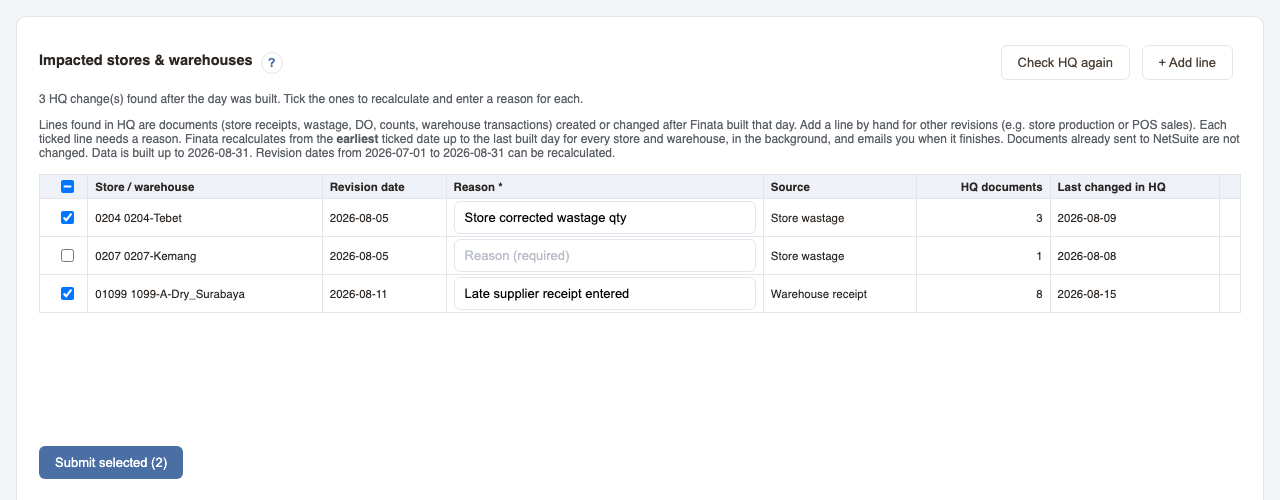
- Check the list. Finata lists the stores and warehouses whose HQ documents were created or changed after that day was built, with the source, the number of HQ documents and when they last changed. Click Check HQ again to refresh it.
- Add other revisions by hand. Store production and POS sales are not detected: click + Add line, choose the store or warehouse and the revision date.
- Tick the lines to include and enter a reason for every ticked line (required).
- Click Submit selected. The confirmation shows the period (earliest ticked date up to the last built day), the number of days, the estimated time and the expected finish. Confirm to start.
What happens
- Every day from the earliest ticked date up to the last built day is rebuilt for all stores and warehouses, in this order: stock ledger, Raw Material Cost, valued stock movement (Stock Ledger). One early date makes the whole run longer, so combine corrections into one submission.
- It runs in the background. Only one recalculation or rebuild runs at a time; if one is running, wait until it finishes.
- You and the scheduler notification list get an email when it finishes or fails, listing the impacted stores and warehouses.
- Limits: from 1 June 2026; at most 200 days per submission. Raw Material Cost is recalculated from 1 July (June opens from OPBAL and the 30 June stock count, which stay as built).
- Documents already sent to NetSuite are not changed.
Follow up (Inventory Correction > Recalculation History)
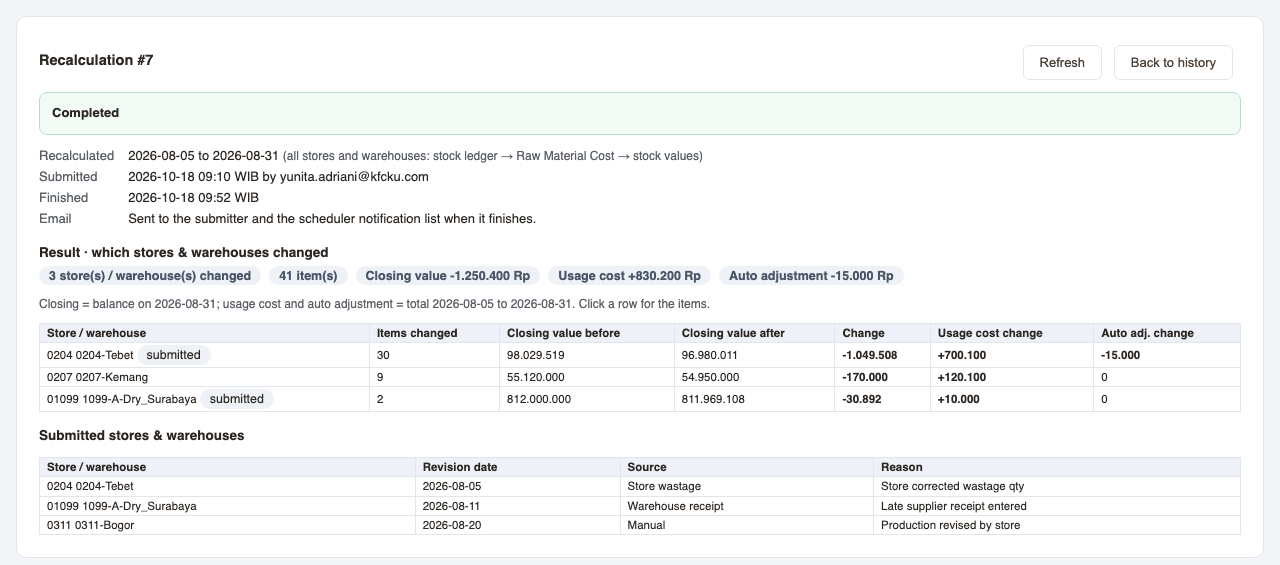
- One row per submission; click a row to open it.
- While it runs: progress and estimated finish, and Stop after current day if needed.
- When it finishes: Result shows which stores and warehouses changed, before and after, with item details; Submitted stores & warehouses shows what was sent and why.
Access: viewing needs the Recalculate view permission; submitting needs Recalculate submit.
Hitung ulang (manual)
Kapan dipakai: data HQ untuk hari yang sudah dibentuk Finata ditambah, diubah, atau dikoreksi (penerimaan terlambat, wastage, DO, hitung fisik toko, petty cash, transaksi gudang...). Hitung ulang membentuk ulang stok, Raw Material Cost, dan nilai Stock Ledger mulai hari itu.
Kirim hitung ulang (Inventory Correction > Submit Recalculation)
- Cek daftarnya. Finata menampilkan toko dan gudang yang dokumen HQ-nya dibuat atau diubah sesudah hari itu dibentuk, beserta sumber, jumlah dokumen HQ, dan kapan terakhir diubah. Klik Check HQ again untuk memperbarui.
- Tambahkan revisi lain secara manual. Produksi toko dan penjualan POS tidak terdeteksi: klik + Add line, pilih toko atau gudang dan tanggal revisinya.
- Centang baris yang mau diproses dan isi alasan untuk setiap baris yang dicentang (wajib).
- Klik Submit selected. Konfirmasi menampilkan periode (tanggal centang paling awal sampai hari terakhir yang terbentuk), jumlah hari, perkiraan waktu, dan perkiraan selesai. Konfirmasi untuk mulai.
Yang terjadi
- Setiap hari dari tanggal centang paling awal sampai hari terakhir yang terbentuk dibentuk ulang untuk semua toko dan gudang, urutannya: buku besar stok, Raw Material Cost, nilai pergerakan stok (Stock Ledger). Satu tanggal yang jauh ke belakang membuat prosesnya lebih lama, jadi gabungkan koreksi dalam satu kiriman.
- Berjalan di latar. Hanya satu hitung ulang atau rebuild yang bisa berjalan; bila ada yang sedang jalan, tunggu sampai selesai.
- Anda dan daftar notifikasi penjadwal menerima email saat selesai atau gagal, berisi toko dan gudang yang terdampak.
- Batas: mulai 1 Juli 2026 (Juni bulan migrasi dan tetap sesuai yang disetujui Accounting); maksimal 200 hari per kiriman.
- Dokumen yang sudah terkirim ke NetSuite tidak berubah.
Pantau (Inventory Correction > Recalculation History)
- Satu baris per kiriman; klik baris untuk membukanya.
- Saat berjalan: kemajuan dan perkiraan selesai, serta Stop after current day bila perlu.
- Saat selesai: Result menampilkan toko dan gudang yang berubah, sebelum dan sesudah, dengan rincian item; Submitted stores & warehouses menampilkan apa yang dikirim dan alasannya.
Akses: melihat butuh izin Recalculate view; mengirim butuh Recalculate submit.
Scheduler flow: how the daily jobs feed each other
Every night Finata builds its tables in stages. A job reads what the stages before it produced, so it runs after them; when an early job fails or a source outside Finata stops, every job after it works on old data until the gap is rebuilt.
- Stage 1 are feeds outside Finata (HQ replication, the NetSuite GL pipeline). Their freshness is on the Data Sources page.
- Each box shows who runs it (Finata scheduler, Cloud Scheduler, manual, outside Finata), what it writes, what it needs, and whether its schedule is on.
- To see when a job ran and what it wrote, open Scheduler › Run history.
Alur scheduler: bagaimana job harian saling mengisi
Setiap malam Finata membangun tabelnya per tahap. Sebuah job membaca hasil tahap sebelumnya, jadi berjalan sesudahnya; bila job awal gagal atau sumber di luar Finata berhenti, semua job sesudahnya memakai data lama sampai celahnya dibangun ulang.
- Tahap 1 adalah sumber di luar Finata (replikasi HQ, pipeline GL NetSuite). Kesegarannya ada di halaman Data Sources.
- Setiap kotak menunjukkan siapa yang menjalankan (scheduler Finata, Cloud Scheduler, manual, di luar Finata), apa yang ditulis, apa yang dibutuhkan, dan apakah jadwalnya aktif.
- Untuk melihat kapan job berjalan dan apa yang ditulis, buka Scheduler › Run history.
Loading the job list…
NetSuite integration
Finata sends a document to NetSuite only when a user with send permission ticks rows and clicks Send selected to NetSuite (and confirms). The only automatic sender is the scheduler job that creates item receipts, and every scheduler job is off until an admin switches it on.
1. What Finata sends
| Document | Page | Source |
|---|---|---|
| B2C sales invoice + customer payments | Finance > Sales, tab B2C | Finata summary (raw materials) |
| Transfer Order + Item Fulfillment (and Item Receipt) | Inventory Order > Transfer Inventory | HQ delivery orders; tick “Also create item receipt” |
| Item Receipt for a transfer | Inventory Order > Item Receipt | HQ receipts whose transfer is already fulfilled in NetSuite |
| Purchase Order + Item Receipt | Inventory Order > Purchase Order | HQ purchase orders and receipts |
| Purchase Requisition | Inventory Order > Purchase Requisition | Warehouse requests |
| Inventory Adjustment (left over, wastage, stock count, consumption, open market) | Inventory Adjustment > Left Over / Wastage / Stock Opname / Consumption, Inventory Adjustment > Open Market | HQ documents; account from item flagging |
Read only, nothing sent: SO Affiliate (preview), Inventory Journal Preview, the Free Meal / Customer Deposit / B2B comparison on Sales (PSGC sends those) and the monitor. Vendor bills are only looked up (TTF), never created.
2. Status of a row
- Ready to send: complete and not in NetSuite yet. On hold: something is missing; the reason is shown (e.g. customer or location missing, payment method not mapped in Payment Method Master, PSGC summary not finished, the store already has another invoice that day). Fix the cause and the row becomes Ready.
- Already in NetSuite: found in NetSuite (sent by Finata or PSGC). Item receipts also have Waiting for shipment (transfer not fulfilled yet).
- While sending: Queued / Sending… / Sent / Held / Failed. Stop ends a background send; documents already sent stay in NetSuite.
3. No duplicates
- Every document has a fixed reference (externalId). Just before sending, Finata checks NetSuite again and skips anything already there.
- To retry, send the row again: if an invoice was created but a payment failed, only the missing payments are sent; if a transfer order exists but the fulfillment failed, the same transfer order is reused.
- A B2C invoice that an admin voided in NetSuite can be resent (Finata uses its own reference, so a voided PSGC invoice does not block it).
4. Corrections
Documents sent to NetSuite are not changed by Finata afterwards, including after a Recalculation. A wrong document must be corrected or deleted in NetSuite; for B2C, Update invoices in NetSuite replaces the lines of invoices Finata sent.
5. Monitoring and access
- Scheduling & Monitoring > Scheduler Map & NetSuite Monitor: jobs, schedule (WIB), last run, and the NetSuite integration tab per month. Scheduled jobs process yesterday's data and email the result.
- Viewing needs the page's view permission; the send buttons appear only with send (Sales, Inventory Adjustment, PO / Transfer / Item Receipt / PR). Switching jobs on and running them is for IT.
Integrasi NetSuite
Finata mengirim dokumen ke NetSuite hanya bila pengguna dengan izin kirim mencentang baris dan klik Send selected to NetSuite (lalu konfirmasi). Satu-satunya pengirim otomatis adalah job penjadwal pembuat item receipt, dan semua job penjadwal mati sampai admin menyalakannya.
1. Yang dikirim Finata
| Dokumen | Halaman | Sumber |
|---|---|---|
| Invoice penjualan B2C + customer payment | Finance > Sales, tab B2C | Ringkasan Finata (raw materials) |
| Transfer Order + Item Fulfillment (dan Item Receipt) | Inventory Order > Transfer Inventory | Delivery order HQ; centang “Also create item receipt” |
| Item Receipt untuk transfer | Inventory Order > Item Receipt | Receipt HQ yang transfernya sudah di-fulfill di NetSuite |
| Purchase Order + Item Receipt | Inventory Order > Purchase Order | PO dan receipt HQ |
| Purchase Requisition | Inventory Order > Purchase Requisition | Permintaan gudang |
| Inventory Adjustment (left over, wastage, hitung fisik, pemakaian, open market) | Inventory Adjustment > Left Over / Wastage / Stock Opname / Consumption, Inventory Adjustment > Open Market | Dokumen HQ; akun dari item flagging |
Hanya-baca, tidak mengirim apa pun: SO Affiliate (pratinjau), Inventory Journal Preview, perbandingan Free Meal / Customer Deposit / B2B di Sales (dikirim PSGC), dan monitor. Vendor bill hanya dicari (TTF), tidak pernah dibuat.
2. Status baris
- Ready to send: lengkap dan belum ada di NetSuite. On hold: ada yang kurang; alasannya ditampilkan (mis. customer atau lokasi kosong, payment method belum dipetakan di Payment Method Master, summary PSGC belum selesai, toko sudah punya invoice lain di tanggal itu). Perbaiki penyebabnya dan baris menjadi Ready.
- Already in NetSuite: sudah ada di NetSuite (dikirim Finata atau PSGC). Item receipt juga punya Waiting for shipment (transfer belum di-fulfill).
- Saat mengirim: Queued / Sending… / Sent / Held / Failed. Stop menghentikan pengiriman di latar belakang; dokumen yang sudah terkirim tetap di NetSuite.
3. Tidak dobel
- Setiap dokumen punya referensi tetap (externalId). Tepat sebelum mengirim, Finata mengecek NetSuite lagi dan melewati yang sudah ada.
- Untuk mencoba lagi, kirim ulang barisnya: bila invoice sudah terbuat tetapi payment gagal, hanya payment yang kurang yang dikirim; bila transfer order sudah ada tetapi fulfillment gagal, transfer order yang sama dipakai lagi.
- Invoice B2C yang di-void admin di NetSuite bisa dikirim ulang (Finata memakai referensinya sendiri, jadi invoice PSGC yang di-void tidak menghalangi).
4. Koreksi
Dokumen yang sudah terkirim ke NetSuite tidak diubah Finata sesudahnya, termasuk setelah Recalculation. Dokumen yang salah harus dikoreksi atau dihapus di NetSuite; untuk B2C, Update invoices in NetSuite mengganti baris invoice yang dikirim Finata.
5. Pemantauan dan akses
- Scheduling & Monitoring > Scheduler Map & NetSuite Monitor: daftar job, jadwal (WIB), hasil terakhir, dan tab NetSuite integration per bulan. Job terjadwal memproses data kemarin dan mengirim hasilnya lewat email.
- Melihat butuh izin view halaman itu; tombol kirim hanya muncul dengan izin send (Sales, Inventory Adjustment, PO / Transfer / Item Receipt / PR). Menyalakan dan menjalankan job adalah tugas IT.
TTF & sending to a department
A TTF (Tanda Terima Faktur) records a vendor invoice that was received. It has a status (where it is in the invoice process) and a document position (which department and person holds it). The two are separate: sending a TTF to a department does not change its status.
1. Create a TTF (TTF - New)
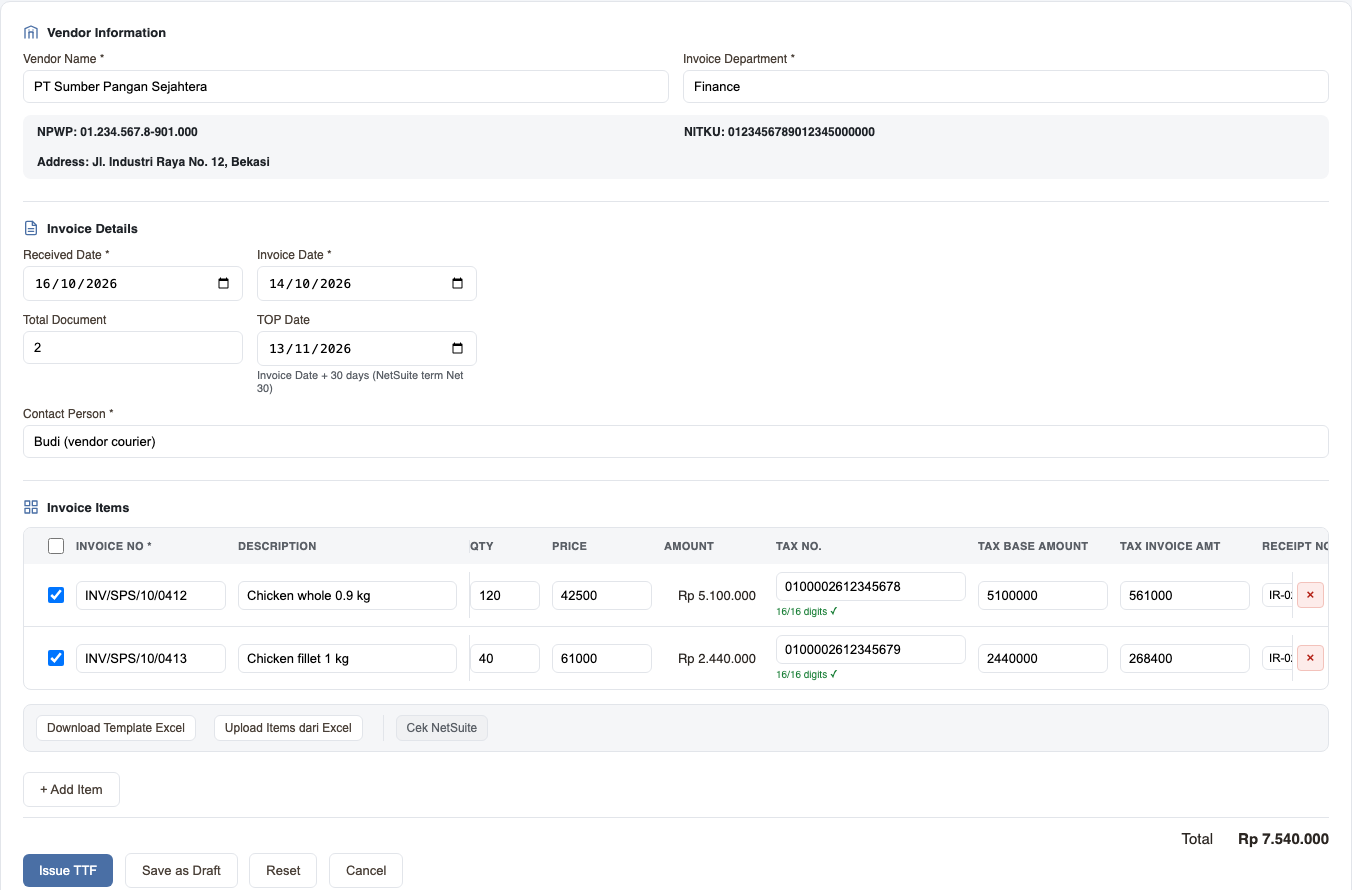
- Vendor Name: pick the vendor; NPWP, NITKU and address come from Vendor Master (correct them there if wrong). Choose the Invoice Department.
- Received Date (today by default), Invoice Date, Total Document (number of physical documents) and Contact Person (who delivered it). TOP Date fills itself from the vendor's NetSuite payment term; you can overwrite it (a corrected date shows ✎ in the list).
- Invoice Items: one line per invoice with Invoice No (required), Description, Qty, Price, Tax No. (up to 17 digits, a counter shows under the box), Tax Base Amount, Tax Invoice Amt, Receipt No, PR No, PO No, Vendor Bill No and Kwitansi. For many lines use Download Template Excel and Upload Items dari Excel; the lines are added to the table so you can still check them.
- Cek NetSuite: tick lines that have a Receipt No and click it; Finata looks up the NetSuite Item Receipt and fills PO No, PR No and Vendor Bill No. The result shows per line in the Status column.
- Click Issue TTF (status New, or Billed if every line has a Vendor Bill No) or Save as Draft. After issuing you can Print TTF or start a + New TTF.
2. Other ways a TTF is created
- Import from Excel (TTF - List): click Download Template. Sheet Header has one row per TTF: TTF Ref, Vendor Name, Invoice Department, Received Date, Invoice Date (YYYY-MM-DD), Total Document, Submitted By Name. Sheet Items has the invoice lines: TTF Ref, Invoice No, Description, Qty, Price, Item Receipt No, PR No, PO No, Vendor Bill No, Kwitansi, No Faktur, Nilai Faktur, Tax Invoice Amt. TTF Ref (any label, e.g. TTF-1) links the two sheets. Each TTF is checked like a manual one; the result lists which TTF Refs failed and why. Remove the rows that succeeded before uploading the file again.
- Vendor portal: the vendor uploads the invoice and Finata creates a Draft TTF for the cashier queue. Open it, complete it and click Submit (status New).
3. Status
| Status | Meaning | How it is set |
|---|---|---|
| Draft | Not submitted yet | Save as Draft, or a vendor portal upload. Submit moves it to New. |
| New | Issued, not yet billed in NetSuite | Issue TTF / Submit / Import |
| Billed | Every line has a NetSuite Vendor Bill No | Automatic at creation, or the Status field in Edit TTF |
| Sent | Released (released date stamped the first time) | Status field in Edit TTF |
| Canceled | Void and locked | Cancel TTF button; Uncancel (Administrator by default) restores the previous status |
A submitted TTF cannot go back to Draft. A Draft cannot be canceled (it was never submitted).
4. Send to a department
- Click Send on a TTF (list row or Edit TTF), or tick several and click Send Selected.
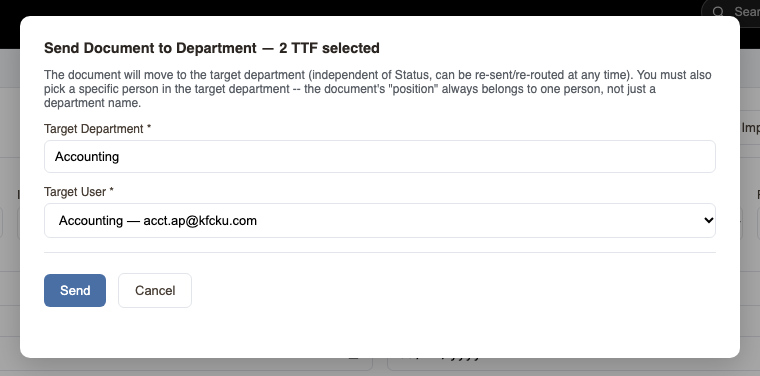
- Choose the Target Department and the Target User (a specific person must be chosen), then Send. Sending to another department than your own needs the permission "send to other department".
- The receiver clicks Konfirmasi Diterima (Edit TTF, the Terima button in the list, or in bulk). After that the sender can no longer change it. Until then the receiver cannot edit or re-send it.
- If something is wrong, the receiver clicks Kembalikan ke Pengirim with a reason; the TTF goes back to the sender.
Sending, receiving and returning do not send emails and do not change the status. Every step is recorded in History.
5. Follow up
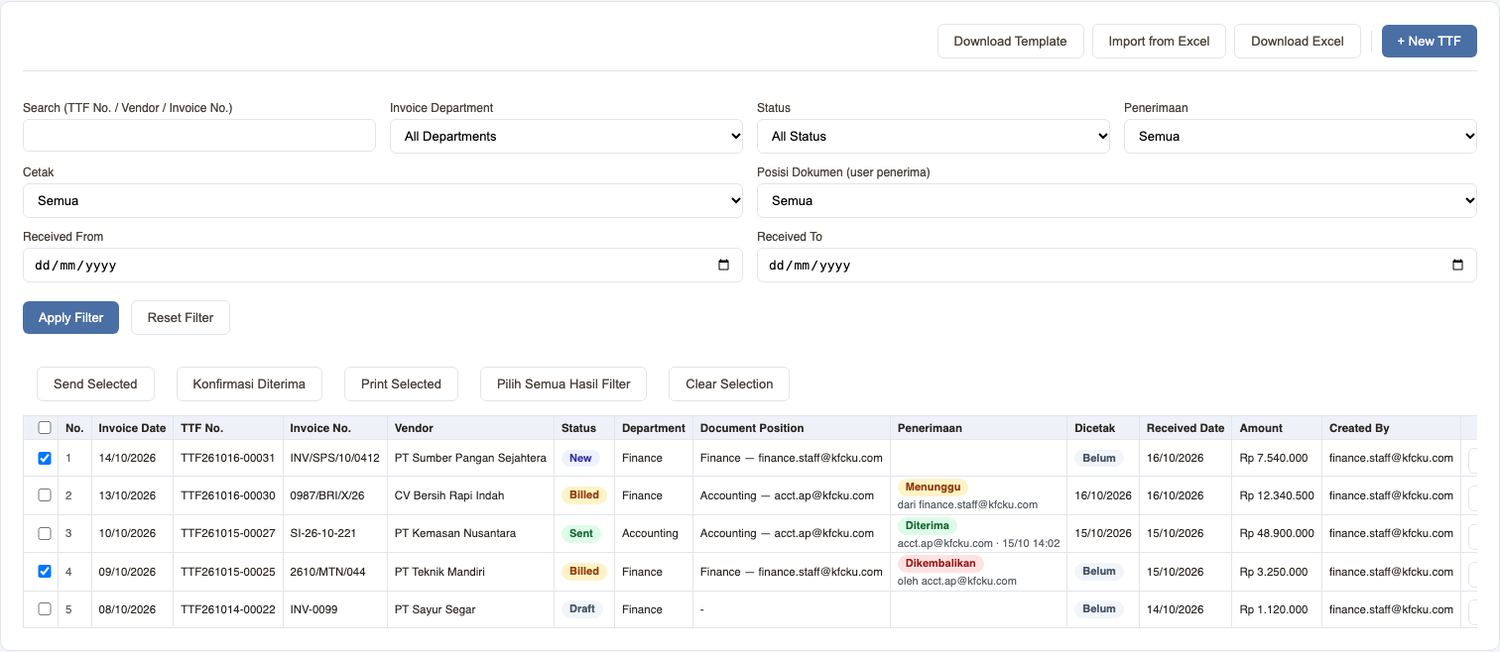
- TTF - List: Document Position (who holds it), Penerimaan (Menunggu / Diterima / Dikembalikan) and Dicetak (last print date, or Belum). Filters: Penerimaan = Menunggu konfirmasi saya for TTFs waiting for you, Posisi Dokumen = Di saya for TTFs you hold, Cetak = Belum dicetak. Pilih Semua Hasil Filter ticks every TTF in the filter result, not only this page.
- TTF - List by Invoice: one row per invoice line, searchable by invoice, tax, receipt, PR, PO or vendor bill number.
- TTF - Payment Recap: reads the NetSuite vendor bill for each line: Lewat jatuh tempo, Belum Dibayar, Dibayar Sebagian, Lunas, Belum ada Vendor Bill, Bill tidak ditemukan, Bill dibatalkan. Payment columns fill once the payment is recorded in NetSuite.
- Print: Print TTF (one) or Print Selected (several in one print); each print updates Dicetak. Download Excel on every list exports the filter result.
- Users see the TTFs they created or that were sent to their department; "view all" shows every department.
6. Common messages
| Message | What to do |
|---|---|
| No Invoice "…" sudah pernah dientry untuk vendor "…" (TTF …) | The invoice already exists for this vendor. Open that TTF; cancel it first only if it really must be entered again. |
| No Faktur maksimal 17 digit angka | Tax No. can have at most 17 digits (dots and dashes are ignored). |
| Data belum lengkap: … (other fields) | Fill the listed required fields. |
| Data belum lengkap: NetSuite Vendor Bill Number … wajib diisi SEMUA baris kalau Status = Billed | Fill Vendor Bill No (or use Cek NetSuite) on all lines, or keep the status New. |
| Anda tidak punya izin mengirim dokumen ke department lain | Send within your own department, or ask the admin for the permission. |
| Hanya penerima (…) yang bisa konfirmasi | Only the Target User can confirm or return it. |
| TTF ini sudah dibatalkan (Canceled) dan terkunci | Ask an Administrator to Uncancel it if it was canceled by mistake. |
Emails are sent only for vendor portal uploads: a notification to the invoice recipient (or the fallback address in System Settings) and a confirmation to the vendor.
TTF & pengiriman ke departemen
TTF (Tanda Terima Faktur) mencatat invoice vendor yang diterima. TTF punya status (sampai mana di proses invoice) dan posisi dokumen (departemen dan orang yang memegangnya). Keduanya terpisah: mengirim TTF ke departemen tidak mengubah statusnya.
1. Membuat TTF (TTF - New)
- Vendor Name: pilih vendor; NPWP, NITKU, dan alamat diambil dari Vendor Master (perbaiki di sana bila salah). Pilih Invoice Department.
- Received Date (bawaan hari ini), Invoice Date, Total Document (jumlah dokumen fisik), dan Contact Person (yang mengantar). TOP Date terisi sendiri dari term pembayaran vendor di NetSuite; boleh diubah (tanggal yang dikoreksi bertanda ✎ di daftar).
- Invoice Items: satu baris per invoice dengan Invoice No (wajib), Description, Qty, Price, Tax No. (maksimal 17 digit, penghitung tampil di bawah kotak), Tax Base Amount, Tax Invoice Amt, Receipt No, PR No, PO No, Vendor Bill No, dan Kwitansi. Untuk banyak baris pakai Download Template Excel lalu Upload Items dari Excel; baris ditambahkan ke tabel sehingga masih bisa dicek.
- Cek NetSuite: centang baris yang punya Receipt No lalu klik; Finata mencari Item Receipt di NetSuite dan mengisi PO No, PR No, dan Vendor Bill No. Hasilnya tampil per baris di kolom Status.
- Klik Issue TTF (status New, atau Billed bila semua baris punya Vendor Bill No) atau Save as Draft. Setelah terbit bisa Print TTF atau + New TTF.
2. Cara lain TTF dibuat
- Import from Excel (TTF - List): klik Download Template. Sheet Header satu baris per TTF: TTF Ref, Vendor Name, Invoice Department, Received Date, Invoice Date (YYYY-MM-DD), Total Document, Submitted By Name. Sheet Items berisi baris invoice: TTF Ref, Invoice No, Description, Qty, Price, Item Receipt No, PR No, PO No, Vendor Bill No, Kwitansi, No Faktur, Nilai Faktur, Tax Invoice Amt. TTF Ref (label bebas, mis. TTF-1) menghubungkan dua sheet. Tiap TTF dicek seperti input manual; hasilnya menyebut TTF Ref mana yang gagal dan kenapa. Hapus baris yang sudah berhasil sebelum mengupload ulang.
- Portal vendor: vendor mengupload invoice dan Finata membuat TTF Draft untuk antrian kasir. Buka, lengkapi, lalu klik Submit (status New).
3. Status
| Status | Arti | Cara diisi |
|---|---|---|
| Draft | Belum disubmit | Save as Draft, atau upload portal vendor. Submit menjadikannya New. |
| New | Sudah terbit, belum di-bill di NetSuite | Issue TTF / Submit / Import |
| Billed | Semua baris punya Vendor Bill No NetSuite | Otomatis saat dibuat, atau kolom Status di Edit TTF |
| Sent | Sudah dirilis (tanggal rilis tercatat pertama kali) | Kolom Status di Edit TTF |
| Canceled | Batal dan terkunci | Tombol Cancel TTF; Uncancel (bawaan hanya Administrator) mengembalikan status sebelumnya |
TTF yang sudah disubmit tidak bisa kembali ke Draft. Draft tidak bisa di-Cancel (belum pernah disubmit).
4. Kirim ke departemen
- Klik Send pada TTF (baris daftar atau Edit TTF), atau centang beberapa lalu klik Send Selected.
- Pilih Target Department dan Target User (harus orang tertentu), lalu Send. Mengirim ke departemen lain selain departemen sendiri butuh izin "kirim ke department lain".
- Penerima klik Konfirmasi Diterima (Edit TTF, tombol Terima di daftar, atau sekaligus). Setelah itu pengirim tidak bisa mengubahnya lagi. Sebelum dikonfirmasi, penerima tidak bisa mengubah atau mengirim ulang.
- Bila ada yang salah, penerima klik Kembalikan ke Pengirim dengan alasan; TTF kembali ke pengirim.
Mengirim, menerima, dan mengembalikan tidak mengirim email dan tidak mengubah status. Setiap langkah tercatat di History.
5. Pantau
- TTF - List: Document Position (siapa yang memegang), Penerimaan (Menunggu / Diterima / Dikembalikan), dan Dicetak (tanggal cetak terakhir, atau Belum). Filter: Penerimaan = Menunggu konfirmasi saya untuk TTF yang menunggu Anda, Posisi Dokumen = Di saya untuk TTF yang Anda pegang, Cetak = Belum dicetak. Pilih Semua Hasil Filter mencentang semua TTF hasil filter, bukan hanya halaman ini.
- TTF - List by Invoice: satu baris per baris invoice, bisa dicari dengan nomor invoice, faktur pajak, receipt, PR, PO, atau vendor bill.
- TTF - Payment Recap: membaca vendor bill NetSuite tiap baris: Lewat jatuh tempo, Belum Dibayar, Dibayar Sebagian, Lunas, Belum ada Vendor Bill, Bill tidak ditemukan, Bill dibatalkan. Kolom pembayaran terisi setelah pembayaran dicatat di NetSuite.
- Cetak: Print TTF (satu) atau Print Selected (beberapa sekaligus); setiap cetak memperbarui Dicetak. Download Excel di tiap daftar mengekspor hasil filter.
- Pengguna melihat TTF yang dibuatnya atau yang dikirim ke departemennya; izin "view all" menampilkan semua departemen.
6. Pesan yang sering muncul
| Pesan | Yang perlu dilakukan |
|---|---|
| No Invoice "…" sudah pernah dientry untuk vendor "…" (TTF …) | Invoice sudah ada untuk vendor ini. Buka TTF tersebut; batalkan dulu hanya bila memang harus dientry ulang. |
| No Faktur maksimal 17 digit angka | Tax No. maksimal 17 digit (titik dan strip diabaikan). |
| Data belum lengkap: … (field lain) | Isi field wajib yang disebutkan. |
| Data belum lengkap: NetSuite Vendor Bill Number … wajib diisi SEMUA baris kalau Status = Billed | Isi Vendor Bill No (atau pakai Cek NetSuite) di semua baris, atau biarkan status New. |
| Anda tidak punya izin mengirim dokumen ke department lain | Kirim di dalam departemen sendiri, atau minta izinnya ke admin. |
| Hanya penerima (…) yang bisa konfirmasi | Hanya Target User yang bisa mengonfirmasi atau mengembalikan. |
| TTF ini sudah dibatalkan (Canceled) dan terkunci | Minta Administrator melakukan Uncancel bila terlanjur dibatalkan. |
Email hanya dikirim untuk upload portal vendor: notifikasi ke penerima invoice (atau alamat cadangan di System Settings) dan konfirmasi ke vendor.
Vendor portal: invoice upload (guide)
Guide for vendors who send invoices through the portal. Download the PDF to send to vendors.
⇩ Download guide (PDF) Open printable version
- Open the link from the email. The PT Fast Food Indonesia Finance/Purchasing team emails you a portal link, a username and a password for your company. Open the link in a browser (Chrome, Edge, Safari). The link is for your company only; do not share it.
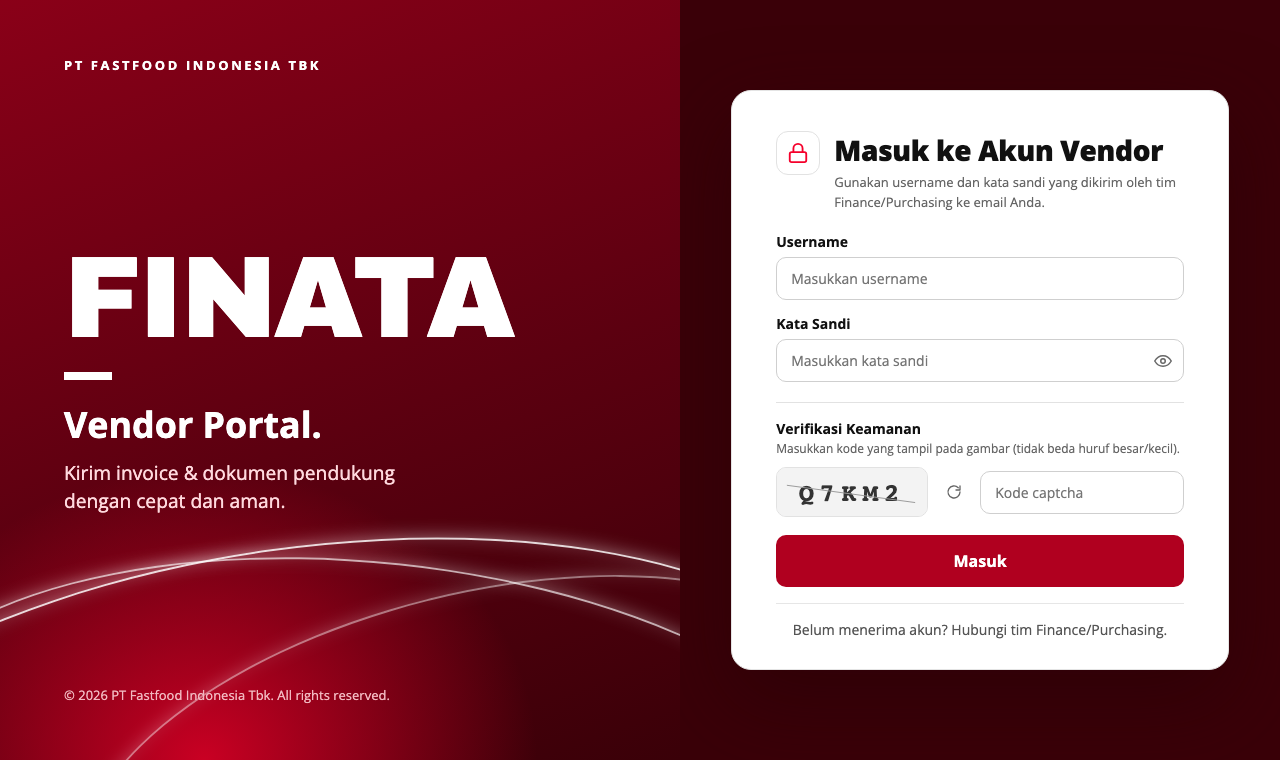
- Sign in. Enter the Username and Password from the email, type the captcha code shown in the picture (not case-sensitive; click the refresh icon for a new code), then click Masuk (Sign in).
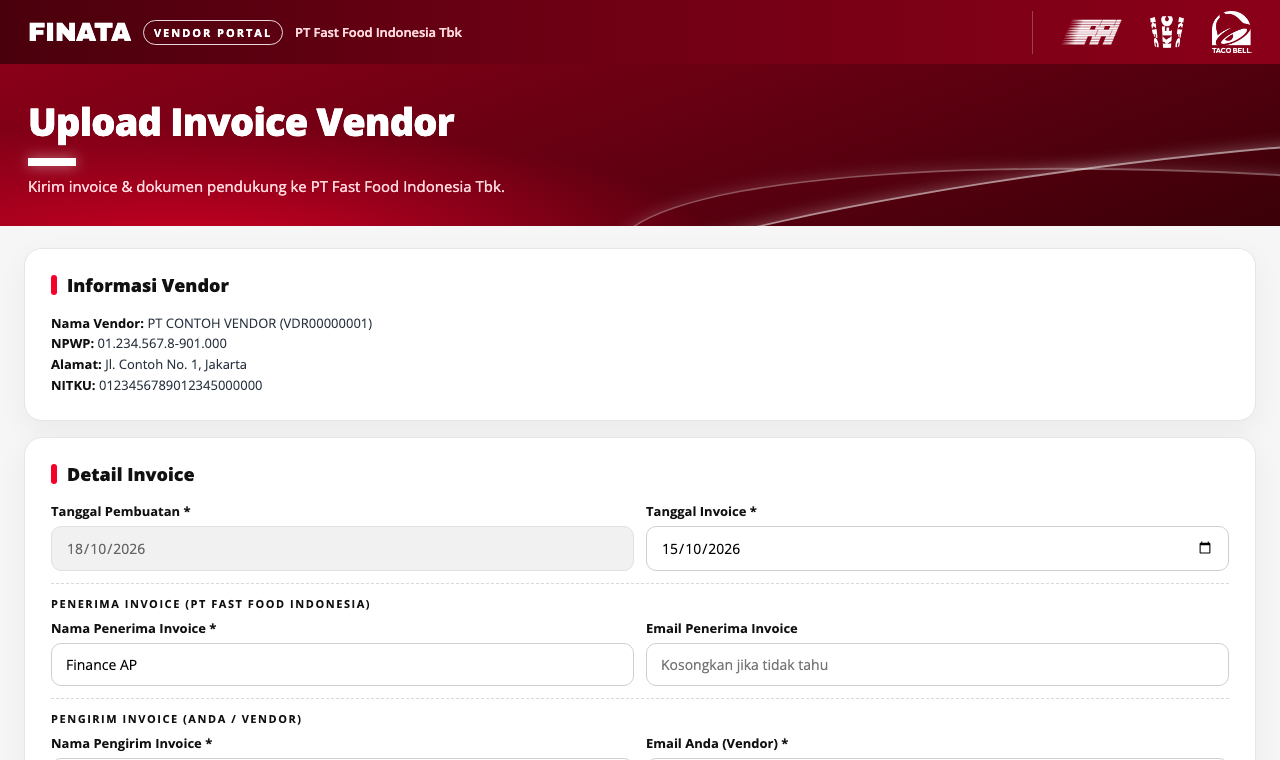
- Check Vendor Information & fill in Invoice Details. Check that the name, NPWP, address and NITKU are correct (contact Finance if not). Tanggal Pembuatan (creation date) is filled in automatically. Fill in Tanggal Invoice (invoice date), Nama Penerima Invoice (the PT Fast Food Indonesia staff or department it is for; their email may be left empty), Nama Pengirim Invoice (your name) and Email Anda (your email) — the confirmation is sent there.
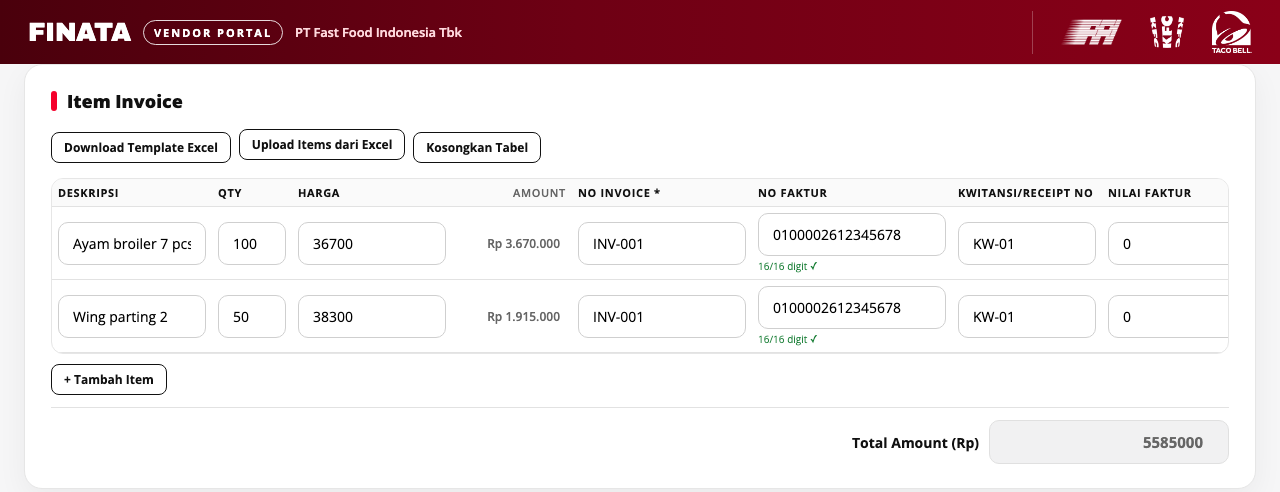
- Fill in the invoice items. Click + Tambah Item for each line: description, qty (max. 3 digits), price, invoice no. (required), tax invoice no. (up to 17 digits, a digit counter shows below the box), Kwitansi/Receipt No and tax invoice amount. Amount and Total Amount are calculated for you. For many lines (e.g. hundreds of stores): click Download Template Excel, fill it in, then Upload Items dari Excel (.xlsx or .csv) — the lines are added to the table. Kosongkan Tabel clears all lines.
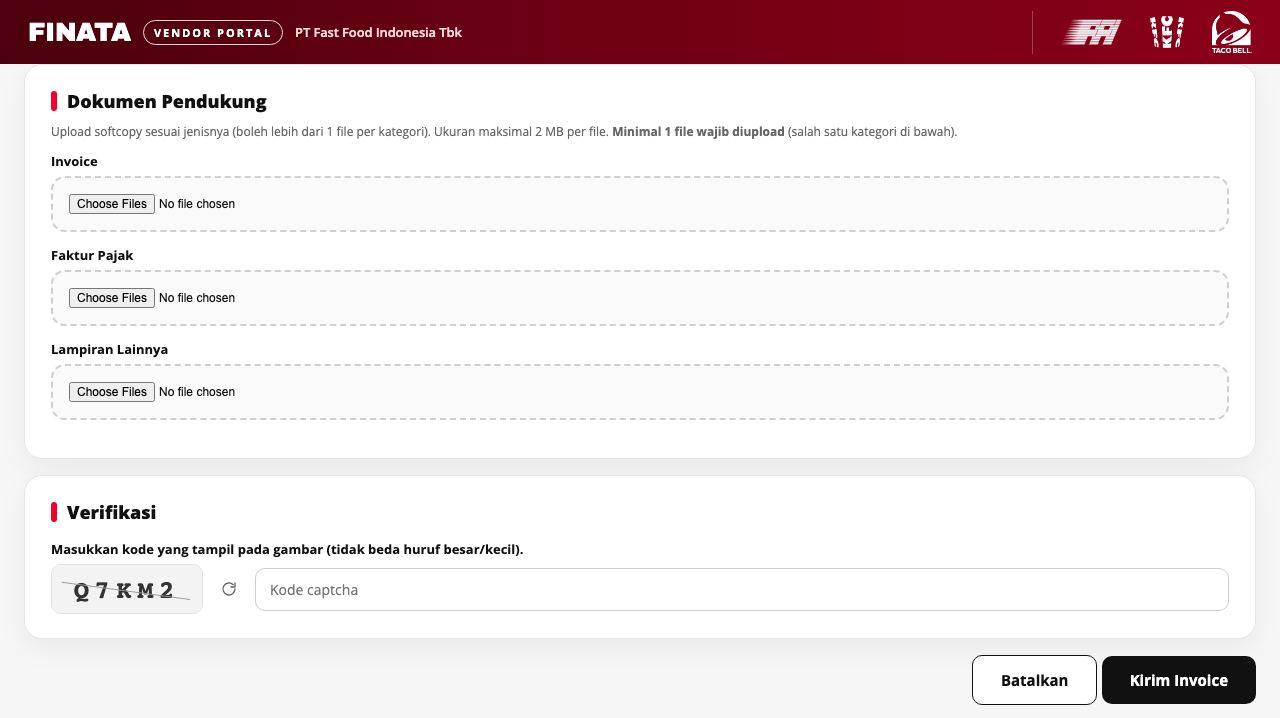
- Upload supporting documents & submit. Upload the soft copies in the right category: Invoice, Faktur Pajak (tax invoice), Lampiran Lainnya (other attachments). Several files per category are allowed, max. 2 MB per file, and at least 1 file is required. File names are listed below each box; the same file cannot be added twice and files can be removed. Type the captcha in Verifikasi, then click Kirim Invoice (send).
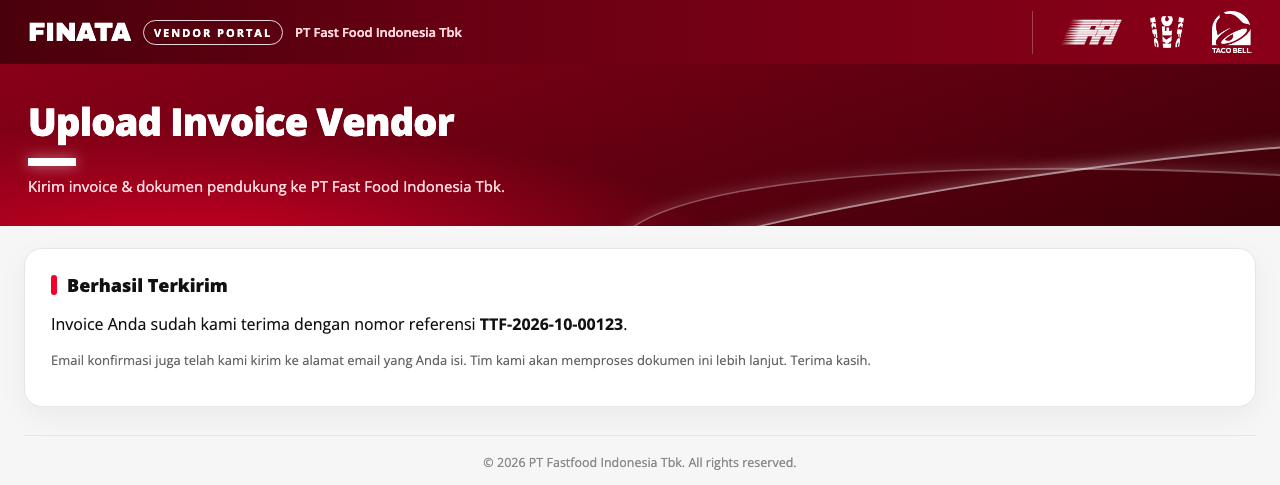
- Done. The Berhasil Terkirim (sent) screen shows your reference number (keep it for questions) and a confirmation email is sent to you. Our team processes the documents.
Vendors open the portal through the Upload Link in Master Data > Vendor Master; the account is created together with that link.
Portal vendor: upload invoice (panduan)
Panduan untuk vendor yang mengirim invoice lewat portal. Unduh PDF untuk dikirim ke vendor.
⇩ Unduh panduan (PDF) Buka versi cetak
- Buka link dari email. Tim Finance/Purchasing PT Fast Food Indonesia mengirim email berisi link portal, username, dan kata sandi khusus untuk perusahaan Anda. Buka link itu di browser (Chrome, Edge, Safari). Link berlaku untuk vendor Anda saja; jangan dibagikan.
- Masuk. Isi Username dan Kata Sandi dari email, ketik kode captcha yang tampil di gambar (huruf besar/kecil sama saja; klik ikon putar untuk kode baru), lalu klik Masuk.
- Periksa Informasi Vendor & isi Detail Invoice. Pastikan nama, NPWP, alamat, dan NITKU benar (hubungi tim Finance bila salah). Tanggal Pembuatan terisi otomatis. Isi Tanggal Invoice, Nama Penerima Invoice (staf/departemen PT Fast Food Indonesia yang dituju; emailnya boleh kosong), Nama Pengirim Invoice, dan Email Anda — email konfirmasi dikirim ke alamat ini.
- Isi Item Invoice. Klik + Tambah Item untuk tiap baris: Deskripsi, Qty (maks. 3 digit), Harga, No Invoice (wajib), No Faktur (maksimal 17 digit, penghitung digit tampil di bawah kotak), Kwitansi/Receipt No, dan Nilai Faktur. Amount dan Total Amount dihitung otomatis. Untuk banyak baris (mis. ratusan toko): klik Download Template Excel, isi, lalu Upload Items dari Excel (.xlsx atau .csv) — baris ditambahkan ke tabel. Kosongkan Tabel menghapus semua baris.
- Upload Dokumen Pendukung & kirim. Upload softcopy pada kategori yang sesuai: Invoice, Faktur Pajak, Lampiran Lainnya. Boleh lebih dari 1 file per kategori, maksimal 2 MB per file, dan minimal 1 file wajib. Nama file tampil di bawah kotak; file yang sama tidak bisa dipilih dua kali dan bisa dihapus. Ketik kode captcha di bagian Verifikasi, lalu klik Kirim Invoice.
- Selesai. Layar Berhasil Terkirim menampilkan nomor referensi (simpan untuk pertanyaan) dan email konfirmasi dikirim ke email Anda. Tim kami memproses dokumen lebih lanjut.
Vendor membuka portal lewat Upload Link di Master Data > Vendor Master; akunnya dibuat sistem bersama link itu.
Master data
Master Data pages hold the lists every report and integration relies on. Some are synced from NetSuite or HQ (change them at the source, then sync), others are filled in Finata. Each page has its own view / edit permission.
| Page | Stored in | Maintained by | Used for |
|---|---|---|---|
| Location Master | BigQuery mst_location | Sync from NetSuite & HQ + manual fields | One list of every store, warehouse, department and head office: NetSuite internal/external id, type, RSC. Other teams read the same table. |
| Master Item | BigQuery inventory_item | Sync (NetSuite + HQ + Accounting flagging) | Items, units and conversions, NetSuite accounts, price. Read-only in Finata; change the source (NetSuite / HQ). |
| Item Group | Finata mst_golongan_item | Manual | Item group name, Accounting DEPT, COGS / NON-COGS. Feeds every Item Group filter and report grouping. |
| Brand Master | BigQuery mst_brand | Manual | Brand codes as in POS sales (KFC, BB, TACOBELL). Brand choices in Food Cost by PLU. |
| Payment Method Master | BigQuery mst_payment_method | Sync from NetSuite + manual rows | POS payment code → NetSuite payment method and deposit account, used when Finata sends B2C payments. |
| Vendor Master | Finata mst_vendor | Sync from NetSuite + manual | Vendor name, NPWP, NITKU, email. Used by TTF; the Upload Link for the vendor portal is created here. |
| Dept Master | Finata mst_dept | Sync from NetSuite | Departments and their NetSuite code / internal id. The invoice department a TTF is sent to. |
| Warehouse Master | Finata mst_warehouse | Manual | Warehouse RSC, KPP, NITKU, JDE code (purchase requisitions). |
| RSC Master / Area Coach Master | Finata | Manual | RSC and area coach lists for filters and reports. |
| Store Master / StoreMerge | Finata mst_store | Manual | Store attributes (business unit, building type, NetSuite location, area). StoreMerge maps a closed or merged store to the store that continues it. |
| COA Mapping | Finata | Manual | Account mapping behind the P/L report lines. |
| Recipe | BigQuery recipe_* | Generated from HQ (Generate Ulang) | Menu and production recipes broken down to raw materials. |
| Item Inventory Flagging | Accounting tool | Manual (Accounting) | How each item is treated per transaction type (GL account types). |
Good to know
- Synced masters (Master Item, Dept, Payment Method from NetSuite, Location sources): edits in the source system appear after the next sync (button on the page, or the scheduler job).
- Location Master: fill the manual fields to fix a type, RSC or NetSuite link; they win over every source and a sync never overwrites them. Rows marked Needs review show why.
- Tables in BigQuery are shared: other teams see a change as soon as it is saved.
Master data
Halaman Master Data menyimpan daftar yang dipakai semua laporan dan integrasi. Sebagian disinkron dari NetSuite atau HQ (ubah di sumbernya, lalu sinkron), sebagian diisi di Finata. Tiap halaman punya izin lihat / ubah sendiri.
| Halaman | Disimpan di | Dikelola dengan | Dipakai untuk |
|---|---|---|---|
| Location Master | BigQuery mst_location | Sinkron NetSuite & HQ + kolom manual | Satu daftar semua toko, gudang, departemen, dan head office: id internal/eksternal NetSuite, tipe, RSC. Tim lain membaca tabel yang sama. |
| Master Item | BigQuery inventory_item | Sinkron (NetSuite + HQ + flagging Accounting) | Item, satuan dan konversi, akun NetSuite, harga. Hanya-baca di Finata; ubah di sumbernya (NetSuite / HQ). |
| Item Group | Finata mst_golongan_item | Manual | Nama golongan item, DEPT Accounting, COGS / NON-COGS. Dipakai semua filter Item Group dan pengelompokan laporan. |
| Brand Master | BigQuery mst_brand | Manual | Kode brand sesuai penjualan POS (KFC, BB, TACOBELL). Pilihan Brand di Food Cost by PLU. |
| Payment Method Master | BigQuery mst_payment_method | Sinkron NetSuite + baris manual | Kode bayar POS → payment method dan akun setoran NetSuite, dipakai saat Finata mengirim pembayaran B2C. |
| Vendor Master | Finata mst_vendor | Sinkron NetSuite + manual | Nama vendor, NPWP, NITKU, email. Dipakai TTF; Upload Link portal vendor dibuat di sini. |
| Dept Master | Finata mst_dept | Sinkron NetSuite | Departemen beserta kode / internal id NetSuite. Departemen tujuan pengiriman TTF. |
| Warehouse Master | Finata mst_warehouse | Manual | RSC, KPP, NITKU, kode JDE gudang (purchase requisition). |
| RSC Master / Area Coach Master | Finata | Manual | Daftar RSC dan area coach untuk filter dan laporan. |
| Store Master / StoreMerge | Finata mst_store | Manual | Atribut toko (business unit, building type, lokasi NetSuite, area). StoreMerge memetakan toko tutup / gabung ke toko penerusnya. |
| COA Mapping | Finata | Manual | Pemetaan akun di balik baris laporan P/L. |
| Recipe | BigQuery recipe_* | Dibentuk dari HQ (Generate Ulang) | Resep menu dan produksi diurai sampai bahan baku. |
| Item Inventory Flagging | Alat Accounting | Manual (Accounting) | Perlakuan tiap item per jenis transaksi (tipe akun GL). |
Perlu diketahui
- Master yang disinkron (Master Item, Dept, Payment Method dari NetSuite, sumber Location): perubahan di sistem sumber muncul setelah sinkron berikutnya (tombol di halaman, atau job penjadwal).
- Location Master: isi kolom manual untuk membetulkan tipe, RSC, atau tautan NetSuite; isian ini menang atas semua sumber dan tidak pernah ditimpa sinkron. Baris bertanda Needs review menampilkan alasannya.
- Tabel di BigQuery dipakai bersama: tim lain langsung melihat perubahan begitu disimpan.
Roles & permissions
1. How access works
- Each user has one role. A role is a list of permissions, written as menu.action, e.g.
ttf.vieworrecalculate.submit. - A menu appears in the sidebar when the role has any permission of that menu; buttons you may not use are hidden. Dashboard and Help are open to everyone; Closing Dates and Scheduler Map & NetSuite Monitor have their own permissions.
- The role with code administrator always has every permission, including new ones. Other roles get new permissions only when an admin ticks them.
- Your department decides which TTFs you see (your own, or sent to your department) and where you may send them.
2. Common permissions
| Permission | Allows |
|---|---|
| ttf.view / create / edit / print | See, create, edit (incl. status, send within own department) and print TTFs |
| ttf.view-all | See TTFs of every department |
| ttf.send-other-department | Send TTFs to another department |
| ttf.cancel / ttf.uncancel | Cancel a TTF / undo a cancel (Administrator by default) |
| recalculate.view / submit | See changes and history / submit and stop a recalculation |
| location-master.view / edit / sync | See / fill the manual columns / sync from NetSuite and HQ |
| vendor-master.edit | Add and edit vendors, upload links and vendor credentials |
| sales-ns-integration.send, inv-ns-integration.send, po-push.send | Send to NetSuite from the integration pages |
| user-management.*, role-management.* | Manage users and roles (Settings) |
Most report pages need only view; integration pages also have send; masters have edit, some also sync.
3. Need access?
Ask your admin, naming the page and what you need to do on it. Without permission the menu or button is hidden; if a link still opens it, the message is "Akun Anda (role: …) tidak punya akses ke fitur ini."
4. For admins (Settings)
- Role Management: + New with Role Code (lowercase, cannot be changed later), Role Name, Status, optional Department, and the Role Access checkboxes. A role can be deleted only when no user has it; an inactive role cannot be given to users.
- User Management: + New with name, email, Role Type, Account Status (Active / Inactive) and Department. The user receives an invitation email to create a password (valid 3 days). Users are never deleted, only set Inactive.
- Role, permission and department changes apply at the user's next login (a session lasts up to 6 hours). Setting a user Inactive applies immediately.
- Passwords and 2FA: see the Login & password topic.
Role & hak akses
1. Cara kerja akses
- Setiap user punya satu role. Role adalah daftar izin, ditulis menu.aksi, mis.
ttf.viewataurecalculate.submit. - Menu muncul di sidebar bila role punya izin apa pun untuk menu itu; tombol yang tidak boleh dipakai disembunyikan. Dashboard dan Help terbuka untuk semua; Closing Dates serta Scheduler Map & NetSuite Monitor punya izin sendiri.
- Role dengan kode administrator selalu punya semua izin, termasuk yang baru. Role lain mendapat izin baru hanya bila admin mencentangnya.
- Departemen Anda menentukan TTF yang terlihat (milik sendiri, atau yang dikirim ke departemen Anda) dan tujuan pengiriman.
2. Izin yang umum
| Izin | Mengizinkan |
|---|---|
| ttf.view / create / edit / print | Melihat, membuat, mengubah (termasuk status, kirim di departemen sendiri), dan mencetak TTF |
| ttf.view-all | Melihat TTF semua departemen |
| ttf.send-other-department | Mengirim TTF ke departemen lain |
| ttf.cancel / ttf.uncancel | Membatalkan TTF / membatalkan pembatalan (bawaan Administrator) |
| recalculate.view / submit | Melihat perubahan dan riwayat / submit dan stop hitung ulang |
| location-master.view / edit / sync | Melihat / mengisi kolom manual / sinkron dari NetSuite dan HQ |
| vendor-master.edit | Menambah dan mengubah vendor, upload link, dan kredensial vendor |
| sales-ns-integration.send, inv-ns-integration.send, po-push.send | Mengirim ke NetSuite dari halaman integrasi |
| user-management.*, role-management.* | Mengelola user dan role (Settings) |
Sebagian besar laporan hanya butuh view; halaman integrasi juga punya send; master punya edit, sebagian juga sync.
3. Butuh akses?
Minta ke admin, sebutkan halamannya dan yang perlu dilakukan. Tanpa izin, menu atau tombol disembunyikan; bila tetap terbuka lewat link, pesannya "Akun Anda (role: …) tidak punya akses ke fitur ini."
4. Untuk admin (Settings)
- Role Management: + New dengan Role Code (huruf kecil, tidak bisa diubah), Role Name, Status, Department (opsional), dan centang Role Access. Role hanya bisa dihapus bila tidak ada user yang memakainya; role nonaktif tidak bisa diberikan ke user.
- User Management: + New dengan nama, email, Role Type, Account Status (Active / Inactive), dan Department. User menerima email undangan untuk membuat password (berlaku 3 hari). User tidak pernah dihapus, hanya dibuat Inactive.
- Perubahan role, izin, dan departemen berlaku saat user login berikutnya (sesi maksimal 6 jam). Membuat user Inactive langsung berlaku.
- Password dan 2FA: lihat topik Login & password.
Login & password
1. Sign in
- Continue with FFI SSO: sign in with your company account. Your password is managed by IT, not by Finata, so Change Password and Forgot password do not apply. Ask IT if you cannot sign in.
- Email and password: enter your Finata email and password, then Sign in. The eye icon shows the password you typed.
- 2FA: if two-step verification is on, enter the 6-digit code from your authenticator app (or one of your backup codes) and click Verify. If an admin has made 2FA required and you have not set it up, Finata shows a QR code: scan it with Google Authenticator, Authy or similar, enter the code, and keep the 10 backup codes somewhere safe (each works once and is shown only once).
- Too many attempts: after 5 wrong passwords in a row the account is locked for 15 minutes. Wait and try again, or use Forgot password (a successful reset also unlocks the account).
- The login screen is dark on odd dates and light on even dates. To always use one, or to use the Apple-style Glass look, open your name (top right) > Login theme.
2. First login (new user)
An admin creates your user in User Management. You receive an email "Undangan Akun: Buat Password Anda" with a link that is valid for 3 days. Open it, enter a new password twice (at least 6 characters) and click Set New Password, then sign in. If the link has expired, ask the admin to click Resend Invitation.
3. Forgot password
- On the login screen click Forgot password?, enter your email and click Send Reset Link.
- Open the email "Finata — Reset Your Password" and click Reset Password. The link works once and for 1 hour; asking for a new link cancels the previous one.
- Enter the new password twice (at least 6 characters), click Set New Password, then sign in.
For privacy the screen always says the link was sent, even if the email is not registered or the user is inactive. No email after a few minutes? Check the spam folder and the spelling of the email, then contact the admin.
4. Change your password (while signed in)
Click your name (top right) > Change Password, enter the current password and the new one twice (at least 6 characters). Manage 2FA in the same menu turns two-step verification on or off.
5. For admins (User Management)
- Edit a user and fill New Password to set a password for them (tell them to change it after signing in).
- Reset 2FA when a user lost their phone and backup codes; they set 2FA up again at the next login if it is required.
- Wajib 2FA makes 2FA required for that user. Resend Invitation sends a new first-login link.
6. Vendor portal
Vendors sign in with the link, username and password that Finata generates, plus a captcha; vendors cannot reset the password themselves. In Vendor Master > Upload Link: Send Credentials emails the vendor a new password (to the Vendor Email in Vendor Master), and Regenerate creates a new link and password (the old link stops working). After 8 wrong attempts within 15 minutes the vendor must wait before trying again.
Login & password
1. Masuk
- Continue with FFI SSO: masuk dengan akun perusahaan. Password-nya dikelola IT, bukan Finata, jadi Change Password dan Forgot password tidak berlaku. Hubungi IT kalau tidak bisa masuk.
- Email dan password: isi email dan password Finata, lalu Sign in. Ikon mata menampilkan password yang diketik.
- 2FA: kalau verifikasi dua langkah aktif, isi kode 6 digit dari aplikasi authenticator (atau salah satu kode cadangan) lalu klik Verify. Kalau admin mewajibkan 2FA dan Anda belum mengaturnya, Finata menampilkan QR code: scan dengan Google Authenticator, Authy, atau sejenisnya, isi kodenya, dan simpan 10 kode cadangan di tempat aman (tiap kode sekali pakai dan hanya ditampilkan sekali).
- Terlalu banyak percobaan: setelah 5 kali salah password berturut-turut akun dikunci 15 menit. Tunggu lalu coba lagi, atau pakai Forgot password (reset yang berhasil juga membuka kunci).
- Layar login gelap di tanggal ganjil dan terang di tanggal genap. Untuk selalu memakai salah satunya, atau tampilan Glass gaya Apple, buka nama Anda (kanan atas) > Login theme.
2. Login pertama (pengguna baru)
Admin membuat user Anda di User Management. Anda menerima email "Undangan Akun: Buat Password Anda" berisi link yang berlaku 3 hari. Buka, isi password baru dua kali (minimal 6 karakter), klik Set New Password, lalu masuk. Kalau link sudah kedaluwarsa, minta admin klik Resend Invitation.
3. Lupa password
- Di layar login klik Forgot password?, isi email, klik Send Reset Link.
- Buka email "Finata — Reset Your Password" dan klik Reset Password. Link hanya bisa dipakai sekali dan berlaku 1 jam; meminta link baru membatalkan link sebelumnya.
- Isi password baru dua kali (minimal 6 karakter), klik Set New Password, lalu masuk.
Demi privasi, layar selalu menyatakan link terkirim walaupun email tidak terdaftar atau user nonaktif. Tidak ada email setelah beberapa menit? Cek folder spam dan ejaan email, lalu hubungi admin.
4. Ganti password (saat sudah masuk)
Klik nama Anda (kanan atas) > Change Password, isi password saat ini dan password baru dua kali (minimal 6 karakter). Manage 2FA di menu yang sama untuk menyalakan atau mematikan verifikasi dua langkah.
5. Untuk admin (User Management)
- Edit user lalu isi New Password untuk membuatkan password (minta user menggantinya setelah masuk).
- Reset 2FA bila user kehilangan HP dan kode cadangan; user mengatur 2FA lagi di login berikutnya bila diwajibkan.
- Wajib 2FA mewajibkan 2FA untuk user itu. Resend Invitation mengirim ulang link login pertama.
6. Portal vendor
Vendor masuk dengan link, username, dan password yang dibuat Finata, ditambah captcha; vendor tidak bisa mereset password sendiri. Di Vendor Master > Upload Link: Send Credentials mengirim password baru ke vendor (ke Email Vendor di Vendor Master), dan Regenerate membuat link dan password baru (link lama tidak berlaku). Setelah 8 kali salah dalam 15 menit vendor harus menunggu sebelum mencoba lagi.
Preview
🟢 <30% · 🟡 30–40% · 🔴 >40% COGS, latest monthPreview
Preview
Product Purchase by Item / Vendor
Procurement PO by Item
Ready to send
Transfer Inventory
Stock that HQ moved from one location to another. Each HQ delivery (DO) becomes one NetSuite Transfer Order and its Item Fulfillment (stock leaves the sending location). The receiving side is the Item Receipt, created on send or later on the Item Receipt page.
How this list is built
SO Affiliate
HQ affiliate orders → NetSuite Sales Order. Item Fulfillment and Invoice are made in NetSuite. Unit price = Finata average cost at the item location on the SO date; a line without a cost is held. Sends go to the NetSuite Connection environment.Results
All Receipts
Item receipt log (NetSuite)
item_receipt_auto_log, visible to other teams too. Click a row for the payload and NetSuite response.Ready to send
Not yet in NetSuite
Inventory Adjustment
HQ documents to send to NetSuite as Inventory AdjustmentsHow this list is built
Lines with unit cost
Warehouse opname check: variances HQ did not adjust
Open Market
Impacted stores & warehouses
Lines found in HQ are documents (store receipts, wastage, DO, counts, warehouse transactions) created or changed after Finata built that day. Add a line by hand for other revisions (e.g. store production or POS sales). Each ticked line needs a reason. Finata recalculates from the earliest ticked date up to the last built day for every store and warehouse, in the background, and emails you when it finishes. Documents already sent to NetSuite are not changed.
| Store / warehouse | Revision date | Reason * | Source | HQ documents | Last changed in HQ |
|---|
Closing dates
Months are closed here, in Finata, in order, once the month is over and fully built. A closed month can no longer be changed by a rebuild, a recalculation, a stock correction or the price basis. NetSuite's accounting periods are shown for information only.
AR Selisih (Payment Gap)
Sales Report
Payment Summary
Stock Corrections
Lines from HQ month-end counts that look wrong: counts typed in the pack field, count typos Finata already ignores, and counts without a stock unit. Click a line to fill the form below.
Batches
PIC per approval stage
PICs get the emails and the tasks for their stage. An RSC without its own PIC uses the "All RSCs" PIC; with no PIC at all, every user with the stage permission is notified.
Requester RSC
Area Coaches and RSC staff can request corrections only for stores in the RSCs listed here.
Petty Cash Claims
How this list is built
Claims come from the HQ petty cash view (v_pettycash): claims the store has submitted, without withdrawals and without affiliate stores. The month is the claim date, which is also the journal date. The account of every line comes from the NetSuite petty cash code list (the code of the line; for Open Market the expense code HQ holds for the item and the store). A claim is held when a code is not in that list, an Open Market item has no expense code for the store in HQ or has two codes on different accounts, the store has no NetSuite location, or the claim is dated before 1 January 2027 and the target is live NetSuite. A line that HQ's account mapping lists twice is counted once. "Already in NetSuite" comes from Finata's own send record: it is written when a claim is queued, sent, fails or is deleted, so the list does not ask NetSuite each time it loads. Right before a journal is created Finata still looks the claim number up in NetSuite (the journal's external ID), so a claim is never sent twice; a journal found there is recorded instead of created. The first time a month is opened the claims are compared with NetSuite once, by itself; after that "Check NetSuite" compares the claims of the current filter with NetSuite on request: it updates approval and journal number, records journals made outside Finata, and marks a journal that is gone as deleted. Delete and resend is only possible while the journal is still Pending Approval.Petty Cash Withdrawals
How this list is built
Withdrawals come from HQ's petty cash transactions (ATM BCA and money taken from sales); affiliate stores and transactions cancelled in HQ are left out. The Scheduler job (Petty cash withdrawals: read HQ and send to NetSuite) reads the day before and the 6 days before it every day; nothing is uploaded or typed here. Each HQ transaction number is stored once and never sent twice. The month is the date of the withdrawal, which is also the journal date. After reading, the job puts every withdrawal of those days without a problem into the NetSuite send queue, for the environment of the scheduled sends. Nothing is sent while the send queue is off; those withdrawals stay Ready here. A withdrawal HQ cancels after Finata stored it is put On hold. The journal debits Petty Cash (code PC) on the store and credits the bank account: code CIB for a KFC store, code CIT for a Taco Bell store. Money taken from sales is credited the same way until System Settings › Petty cash has its own code; from then on it is credited to that code. Codes and accounts come from the NetSuite petty cash code list; a withdrawal is held when a code is missing there, the store is not in Finata's location master or has no NetSuite location or Region, or it is dated before 1 January 2027 and the target is live NetSuite. "Already in NetSuite" comes from Finata's own send record, written when a withdrawal is queued, sent, fails or is deleted; the list does not ask NetSuite each time it loads. Right before a journal is created Finata still looks the withdrawal's key up in NetSuite (the journal's external ID), so a withdrawal is never sent twice. The first time a month is opened the withdrawals are compared with NetSuite once, by itself; after that "Check NetSuite" compares the withdrawals of the current filter with NetSuite on request (approval, journal number, journals that are gone). Delete and resend is only possible while the journal is still Pending Approval.MDR Uploads
New upload
Supported merchants and how files are read
The merchant is detected from the file name and columns. Every MID is mapped to its store and accounts from the MID master; unmapped MIDs go to Errors and can be proposed to NetSuite on MDR Master > MID Mapping. The same file cannot be uploaded twice.
One journal per upload and settlement date (memo = merchant), lines per store: Cr bank in transit (gross), Dr bank (settlement), Dr marketing account (promo / discount), Dr Bank Charges = gross - settlement - marketing (MDR fee, service tax and PPh 23 together, as PSGC posts it). The fee, service tax and PPh 23 from the file are shown next to it for comparison.
Gross amount in the settlement file per store and transaction date, against the POS sales paid with that merchant (HQ POS payments, same payment method codes). A difference of up to Rp 1,000 per store-day counts as a match (rounding). Recalculated on upload and on Recheck.
MIDs that could not be turned into journal lines. Fix the MID in NetSuite's MDR master, refresh the copy (MID Master tab, or wait for the daily sync), then press Recheck on the upload to map it again.
MDR Master
How each merchant's settlement file is read. A change here applies to the next upload; files already uploaded keep the numbers they were read with. Columns are matched by header name (upper/lower case ignored); list several names when a bank uses more than one.
Merchant
1 Sample file
2 Merchant
3 Columns
| Finata field | Column in the file | Detected | Example values |
|---|
Column name options
One column name per line; the first one found in the file is used. After a|: left:4 first 4 characters,
split:-:4 5th part split by "-", tail:- text after the last "-" (or the whole value), div:100 divide by 100, neg flip the sign, date:M/d/yyyy date format.
#7 = 8th column, for files without a header row.4 Rows (optional)
Keep, leave out or stop at certain rows
One rule per line, Column = value, value. Values must match the whole cell (upper/lower case ignored).
5 Test and save
MIDs from uploaded files that are not in the NetSuite MID master. Finata proposes the store (from the outlet code or name in the file), the business unit and the accounts (copied from existing MIDs of the same payment method and region). Correct what is wrong, Save, then Send to NetSuite creates the MDR Merchant Dataset Mapping record; afterwards press Recheck on the upload.
MID to store and accounts, copied from NetSuite's MDR Merchant Dataset Mapping records. Refreshed every day by the scheduler job Sync MDR MID master. To change a MID: find it, press Edit, save the change, then Send selected to NetSuite; the master is copied again afterwards. Press Recheck on the uploads that use that MID.
All
Missing Vendor Prices
Vendor × location × item combinations received (HQ store and warehouse receipts) in the period but with no price in Vendor Price Per Location. Premiums / merchandise (item group 30) are not listed: they have no price by design. Download the Excel, fill in Price and Effective Date, and upload it on Vendor Price Per Location.Vendor Price Per Location
NetSuite purchase prices per vendor, location and item -- browse, upload or edit (saved in Finata, then sent to NetSuite), sync.- 1Upload file
- 2Review
- 3Send to NetSuite
File format
Columns: Vendor Code | RSC | KFC Location | NetSuite Location ID | Item Code | UOM | Price | Effective Date. Fill one location per row: RSC (e.g. RSC Jakarta or 01) for every NetSuite store and warehouse under it, or ALL for every store; KFC Location or NetSuite Location ID for one store or warehouse (both may be filled, then they must match). RSC plus a store is checked to belong to that RSC. Affiliate stores are never included; a row for one location wins over its RSC row. Each line is checked against NetSuite and compared with the price in force on that date. On Submit, new / changed lines are saved in Finata and sent to NetSuite as new records (earlier prices stay as history); locations are checked again in NetSuite just before sending.
Reconciliation with Accounting
Finata (Food Cost by PLU: POS B2C + B2B bookings, own stores) against Accounting's menu mix (theoretical cost) per month. The cost-per-unit gap compares the same menus at Finata's units, so it isolates price and recipe from sales mix. Accounting's file is uploaded in Master Data → Purchase Price Basis.
Purchase Price Basis
Uploads
Prices in this upload
Submitted recalculations
Click a row to open that submission.
Recalculation
Result · which stores & warehouses changed
Submitted stores & warehouses
Closing Balance Upload Override
Uploads
Review
Send B2C to NetSuite
POS changes after the summary
Send Free Meal Store to NetSuite
Send Customer Deposits to NetSuite
All
True-up vs NetSuite GL (jurnal yang dikirim)
NetSuite sudah membukukan persediaan dari transaksinya sendiri (Assembly Build, invoice/COGS, Inventory Adjustment PSGC, Item Receipt/Ship, jurnal manual). Yang dikirim Finata hanya selisihnya: saldo akhir Finata (qty × harga RMC) dikurangi saldo GL NetSuite per lokasi × akun persediaan, s.d. akhir bulan periode di atas. Akun dalam perjalanan (mis. 11340101) dan lokasi yang hanya ada di NetSuite tidak dijurnal. Menghitung butuh sekitar 5 menit (membaca GL NetSuite).
Rincian: per jenis pergerakan (penjelasan, bukan jurnal yang dikirim)
Per akun
Jurnal per lokasi
Daftar Resep
Daftar Item
Sales Dashboard
Store sales from Quick Count BigQuery.By day
WeekendPublic holidayInventory Dashboard
Stock on hand, chicken, days of cover, reorder, deliveries, holidays, food cost, losses and data issues from the Finata stock ledger.Menu Dashboard
Menu mix, basket, attachment, channel & daypart, food cost and capacity from the BigQuery POS bill lines.Build
One BigQuery run per month, in the background, one at a time. Dims (stores, menus, prices) are rebuilt after the months.
Item master
One row per POS item code: category, menu name, role, recipe composition, cost (was the Sheet "KFC menu master"). Rebuild the months after changing it.
Store seats & dates
Seats, opening date, last renovation, lease end and tenure per store, for the Capacity and Stores tabs (format, m² and drive-thru come from the HQ store profile). Edit in the table or download the Excel, fill the yellow columns and upload it. Saving rebuilds dims.
Files
Upload files with the same names as in the old Drive folder "KFC Menu Dashboard" (monthly cubes, dims, and the laptop inputs static.json, unit_cost.json.gz, foodcost.json.gz, pricing.json.gz, stock*.json.gz, target.json, store_master.json, store_overrides.json). Several files at once are sent one by one.
